
TL;DR
For creators who need to hide their face in high-quality video, using Snapchat filters on PC is possible—but not seamless. Most face-masking AR tools (Snapchat included) cap video at 720p and struggle with post-production or pre-recorded content. According to Pseudoface’s analysis of over 250,000 public Reddit threads from real adult content creators (based on 2025–2026 data), only 18% expressed satisfaction with Snapchat’s desktop workflow; the majority turn to editing suites or third-party apps for better quality and more control. Hybrid workflows—combining AR masking, video upscaling, and desktop editing—offer the best balance between anonymity, professionalism, and visual fidelity. However, every method brings privacy tradeoffs and some workflow complexity—so always verify each tool’s risks before trusting your face to automation.
Why Creators Use Snapchat Filters for PC: A Landscape of Needs and Limits
For the privacy-conscious, face hiding isn't about gimmicks—it's survival. As platforms like OnlyFans, TikTok, and YouTube get more competitive, staying both anonymous and visually polished is crucial. Mobile AR masks (Snapchat’s doll face, beauty, or cartoon filters) are easy to use but notoriously limited: live-only formats, 720p video caps, and poor support for pre-recorded content send many creators searching for PC workflows.
By 2026, the creator landscape has matured. Audiences are more discerning, while professional competitors invest in higher-quality tools and tighter identity protection. Being “faceless” must not look amateur, especially when your audience is paying. This arms race shapes creator priorities: privacy, quality, and workflow flexibility.
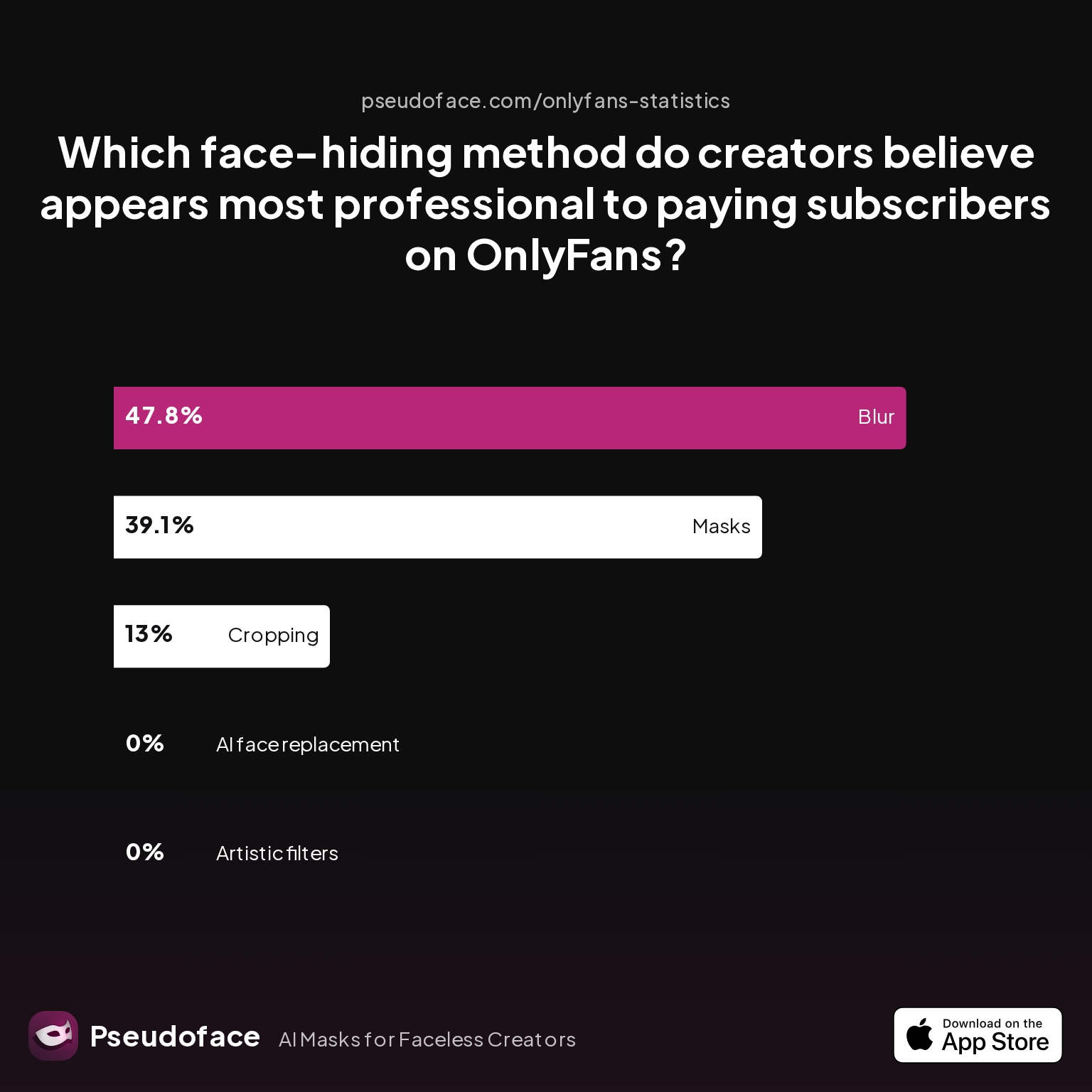
| Answer | Percentage |
|---|---|
| AI face replacement | 0.00% |
| Artistic filters | 0.00% |
| Blur | 47.83% |
| Cropping | 13.04% |
| Masks | 39.13% |
According to Pseudoface data, blur and masks are seen as the most professional face-hiding methods by paying subscribers (47.8% and 39.1% respectively), far outpacing AI face replacement or artistic AR filters. This perception is crucial for creators weighing Snapchat filters against more conventional approaches. While a whimsical AR lens might seem playful, it rarely signals premium content to a discerning audience.
Even so, many creators still reach for Snapchat and similar mobile overlays out of necessity. Direct-to-PC, high-resolution workflows remain rare, and each “solution” introduces fresh tradeoffs. The frustration is evident in creator forums:
Open thread on Redditr/CreatorsAdvice
u/Moneyovermadness
You can apply a filter on Snapchat after the video is made… But it only works for three minute videos so that’s the only problem. I don’t know what was wrong with my face last week, but I literally looked horrible after I got done filming because of the lighting in my room… I went on Snapchat and put a soft make up filter over my seven minute video. First, I had to split it into three different partswith a video editing app… And then I did the filter in Snapchat and then put it back together afterwards. Yes, it was a lot of work, but was worth it in the end.

As this quote reveals, outgrowing hobby-grade tools is a universal part of the journey. PC workflows are not just a tech swap—they’re a step toward professionalism, and essential for creators who want control over client-facing video quality, privacy, and creative consistency. Yet, before tackling desktop strategies, a clear-eyed look at what Snapchat workflows on PC can (and can’t) deliver is essential.
The Technical Reality: How to Use Snapchat Filters Beyond Your Phone
Snapchat’s AR filters (“Lenses”) became a bedrock of casual anonymity for mobile creators—a trend that spiked when Snap Camera brought those filters to PC desktops in the early 2020s. But Snap officially discontinued Snap Camera in 2023, abruptly ending easy, always-on desktop masking for millions. This left a patchwork of alternatives: browser-based Snapchat for Web, Chrome extensions that mimic filters, and unofficial workarounds that rarely match the simplicity or quality of the legacy app.
So, what’s actually possible for PC creators in 2025–2026?
- Snapchat for Web: Offers direct filters in Chrome/Edge, enabling AR masking for live video calls, some browser-based uploads, and web recording. Resolution is capped at 720p; applying filters to pre-recorded or local HD video is unsupported.
- Chrome Extensions and Browser Plugins: Some extensions piggyback AR masking onto webcams for live-streaming or uploads. These tools are inconsistent and may introduce latency, crashes, or privacy risks. No official Snapchat support.
- Phone-to-PC Workarounds: VM software or screen-capture tricks sometimes let creators pipe mobile Snapchat video feed into PC recording tools. Results are clunky at best, and typically degrade video quality even further.
How do real creators adapt in this technical bind? Here’s platform usage data from Pseudoface’s Reddit thread analysis:
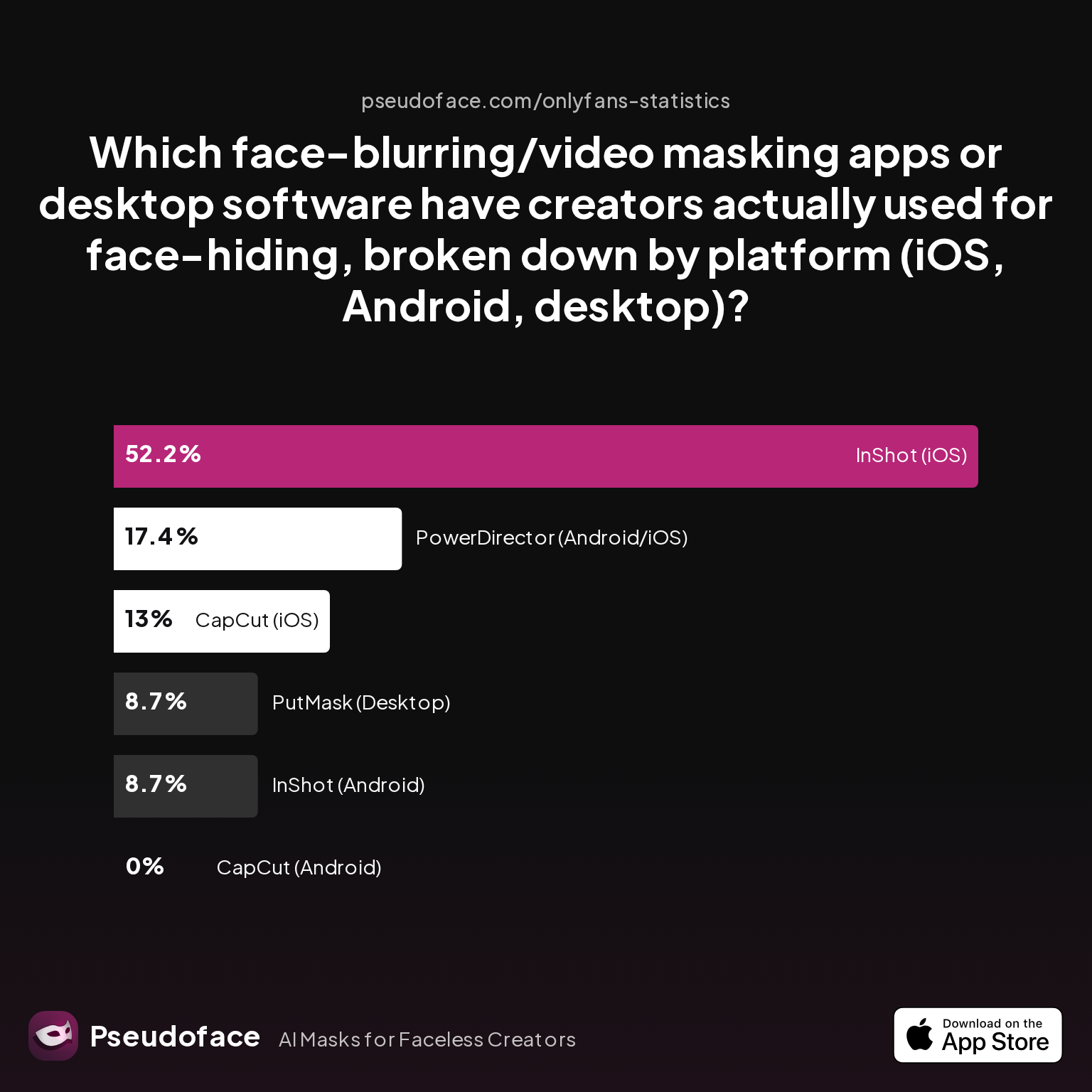
| Answer | Percentage |
|---|---|
| CapCut (Android) | 0.00% |
| CapCut (iOS) | 13.04% |
| InShot (Android) | 8.70% |
| InShot (iOS) | 52.17% |
| PowerDirector (Android/iOS) | 17.39% |
| PutMask (Desktop) | 8.70% |
Over half of surveyed creators turn to InShot on iOS, while only 8.7% use any true desktop masking software. This aligns with countless Reddit threads: despite a growing demand for PC workflows, robust desktop AR mask solutions remain a minority. Methodology limitations apply—self-selecting users with technical confidence may overreport desktop usage, while mobile solutions dominate for speed and ease.
Frustration with these technical limits is voiced time and again:
Open thread on Redditr/CreatorsAdvice
u/Moneyovermadness
You can apply a filter on Snapchat after the video is made… But it only works for three minute videos so that’s the only problem. I don’t know what was wrong with my face last week, but I literally looked horrible after I got done filming because of the lighting in my room… I went on Snapchat and put a soft make up filter over my seven minute video. First, I had to split it into three different partswith a video editing app… And then I did the filter in Snapchat and then put it back together afterwards. Yes, it was a lot of work, but was worth it in the end.
This real-world workaround highlights what most desktop-first creators learn fast: Snapchat’s workflows are designed for casual, mobile content—hacking them into premium, long-form video involves tedious “split and stitch” processes that frustrate more than they empower.
As a result, many privacy-focused creators abandon mobile-first AR masking for better post-production options—setting up a critical question: Which alternative tools actually deliver on both anonymity and visual quality, especially for paid, desktop-centric content?
Creative Anonymity vs. Quality: Comparing Face Filter Online Tools and Higher-End Alternatives
Switching to the PC opens a wider—but messier—toolkit. Desktop creators often juggle online face filter tools, manual blurring, and advanced editing suites to hide their face. But not all are created equal. Some browser plugins barely mask identity and degrade quality, while higher-end workflows (like Photoshop face swaps) trade ease-of-use for professional polish.
When assessing alternatives, creators most often weigh two outcomes:
- Reliability—Does the tool actually hide my face, especially during movement?
- Consistency—Will it crash, degrade video quality, or leave privacy “holes”?
Pseudoface’s dataset reveals the lived reality for desktop faceless workflows:
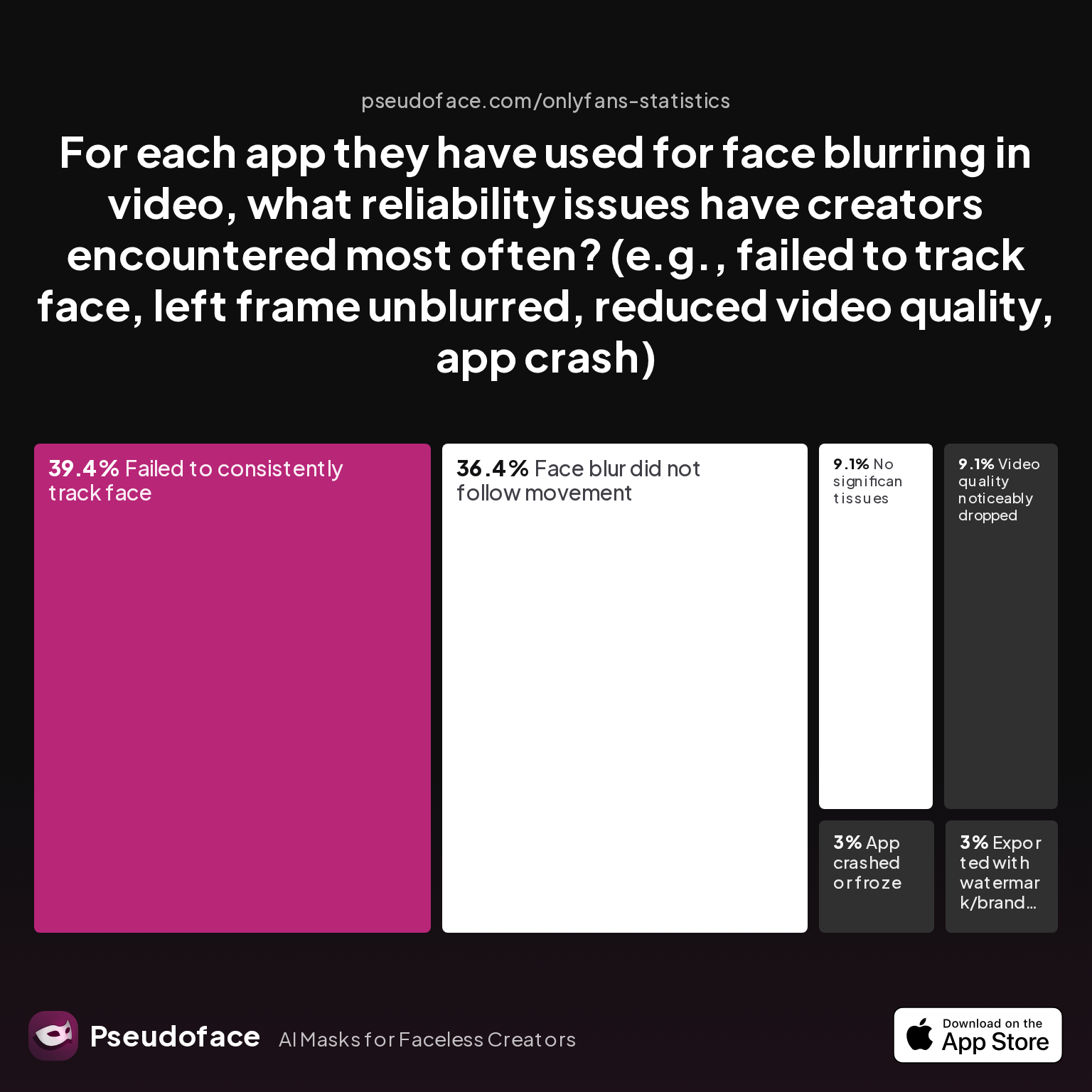
| Answer | Percentage |
|---|---|
| App crashed or froze | 3.03% |
| Exported with watermark/branding | 3.03% |
| Face blur did not follow movement | 36.36% |
| Failed to consistently track face | 39.39% |
| No significant issues | 9.09% |
| Video quality noticeably dropped | 9.09% |
Nearly 4 in 10 creators experienced failed face tracking, while only 9% reported no significant issues across popular face-blur desktop tools. This exposes a sobering truth: plugging in new desktop apps rarely delivers bulletproof anonymity out-of-the-box. Every “auto mask” or browser-based AR filter risks missing facial features mid-video—a critical privacy risk for paid and premium creators.
Satisfaction scores echo these pain points:
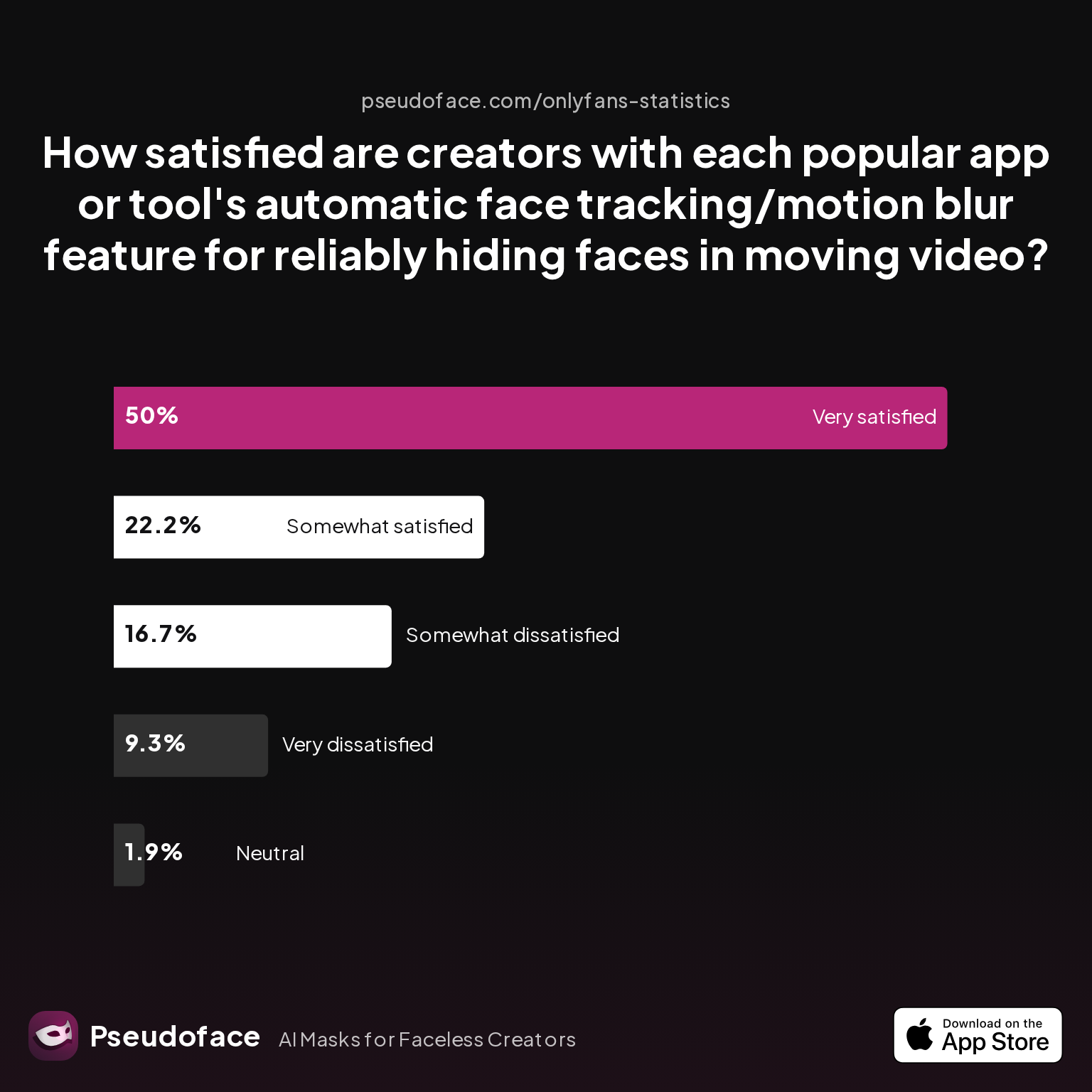
| Answer | Percentage |
|---|---|
| Neutral | 1.85% |
| Somewhat dissatisfied | 16.67% |
| Somewhat satisfied | 22.22% |
| Very dissatisfied | 9.26% |
| Very satisfied | 50.00% |
Half of users were very satisfied, but over a quarter remain dissatisfied or neutral about their auto-tracking experience. This broad satisfaction gap suggests a bimodal outcome: when automated filters work, they feel magical; when they don’t, the cost is real and anxiety-inducing.
Reddit is full of both success stories and warning flags on this front:
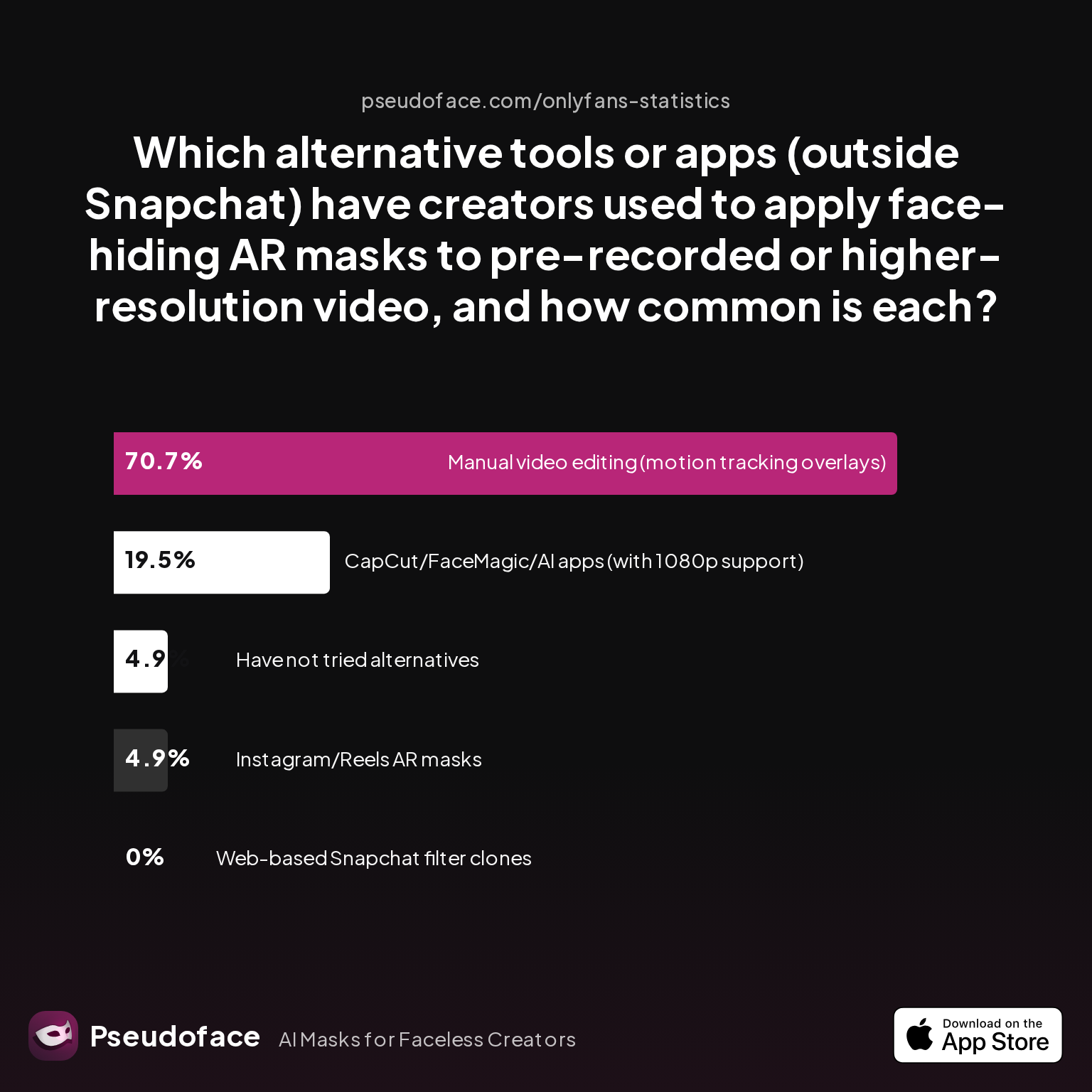
Manual motion tracking, CapCut, and even Instagram’s AR masks are now adopted more widely than pure browser-based “Snapchat filter clones” for faceless desktop content.
| Answer | Percentage |
|---|---|
| CapCut/FaceMagic/AI apps (with 1080p support) | 19.51% |
| Have not tried alternatives | 4.88% |
| Instagram/Reels AR masks | 4.88% |
| Manual video editing (motion tracking overlays) | 70.73% |
| Web-based Snapchat filter clones | 0.00% |
Over 70% of experienced creators turn to manual desktop editing—mask overlays, manual blurs, or face swaps—rather than pure AR or online filter clones. Web-based imitations of Snapchat are almost nonexistent among serious PC creators. While survey methodology (self-selection, survivorship effect) means hobbyist-only users are likely underrepresented here, the clear direction is that post-production control and reliability trump gimmicky plugin ease.
Reddit wisdom reinforces this migration:
Open thread on Redditr/CreatorsAdvice
u/audfox
CapCut lets you retouch and add makeup. You can export at 1080 and adjust the fps from 24-60. You can do a trial of the pro plan and delete it when you’re done.
Open thread on Redditr/CreatorsAdvice
u/LollipopGothThot
I've used an app called YouCut. It's very useful for editing videos and adding emojis throughout the video.
As Reddit and the data show, reaching for CapCut, YouCut, or full-featured editors isn't just a tech flex—it's a necessity to break through the 720p ceiling and regain post-production flexibility. Only by moving beyond mobile and browser-locked AR filters can creators consistently achieve both anonymity and the video quality their audience expects.
Desktop Workflows in Practice: From Snap Lenses to Photoshop Face Swap & Pixlr Tricks
So, how do faceless creators actually construct reliable, high-quality desktop pipelines? The answer is rarely a single tool. Instead, pro workflows combine AR masks, manual overlays, and advanced editing techniques for fidelity and control from recording through export.
The Hybrid Workflow
A common “best of both worlds” process looks like this:
- Step 1: Record raw footage (either masked in real-time with any AR tool, or unmasked to maximize video quality for later processing).
- Step 2: Apply manual or semi-automated masking in editors like CapCut, PutMask, or DaVinci Resolve. This might include tracking your face frame-by-frame, overlaying a digital mask, or blurring specific areas with anchor keyframes.
- Step 3: For total transformation, use face swap AI plugins (Photoshop, Pixlr, or FaceMagic) to “replace” your face skin with a stock or cartoonized counterpart.
- Step 4: Upscale final export if necessary, preserving as much fidelity as possible despite layers of masks or blurring.
- Step 5: Run the finished video through a privacy review, checking manually for any frames where identity “bleeds” through.
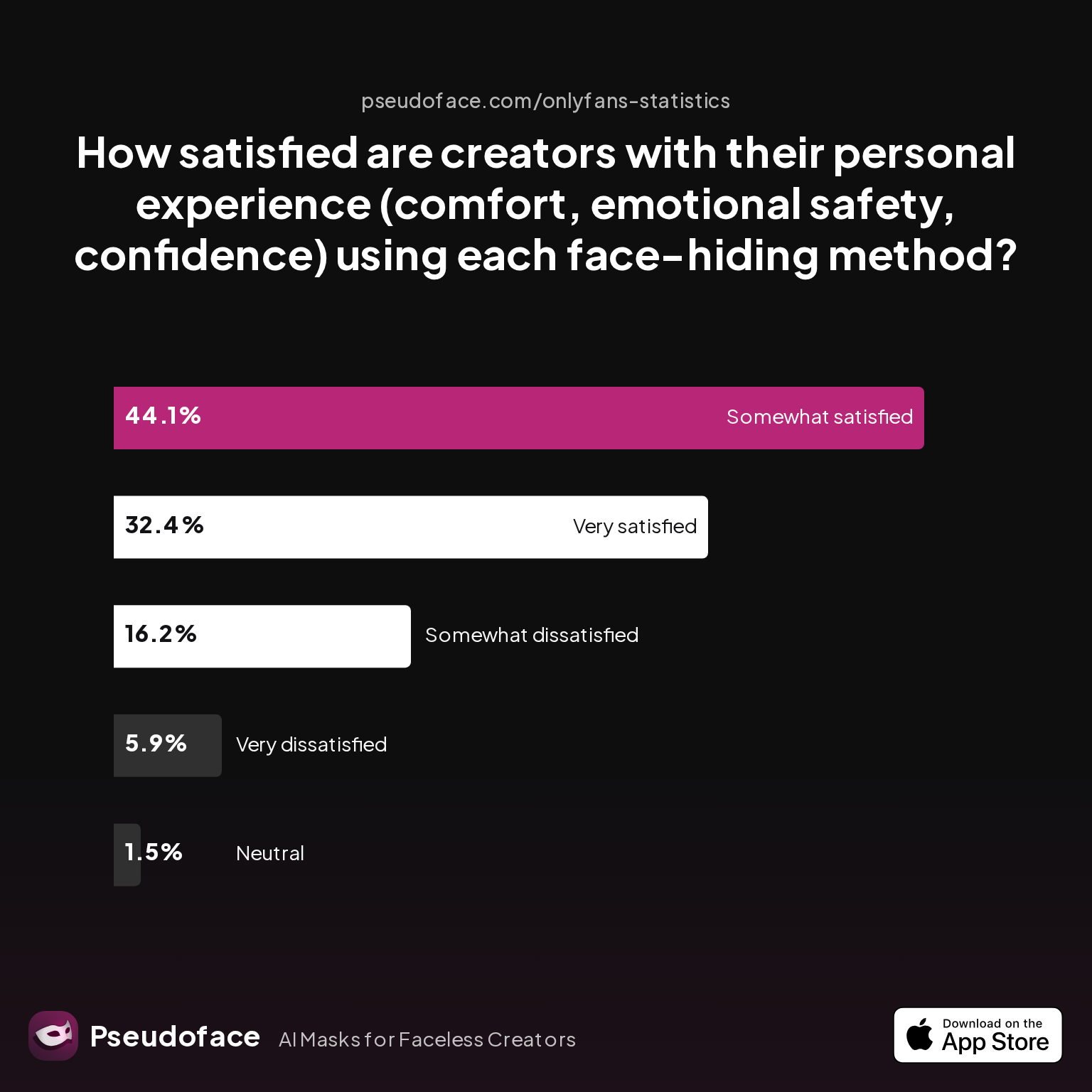
How do creators rate their own comfort and satisfaction with these workflows?
| Answer | Percentage |
|---|---|
| Neutral | 1.47% |
| Somewhat dissatisfied | 16.18% |
| Somewhat satisfied | 44.12% |
| Very dissatisfied | 5.88% |
| Very satisfied | 32.35% |
Over three-quarters (76.5%) of creators reported “somewhat satisfied” or above with their comfort, emotional safety, and confidence using their chosen face-hiding pipeline. But nearly 1 in 5 remain dissatisfied—often citing workflow complexity, lingering privacy paranoia, or creative frustration as key factors.
This can drive creators to ever more elaborate (sometimes, physical) solutions:
Open thread on Redditr/onlyfansadvice
u/queen-arya
Im a no face creator. I use a plain black cloth mask. I dont show my eyes, nose, mouth, anything. Literally everything is neck down Dont forget, facial recognition does exist
Visual Quality: The Deciding Factor
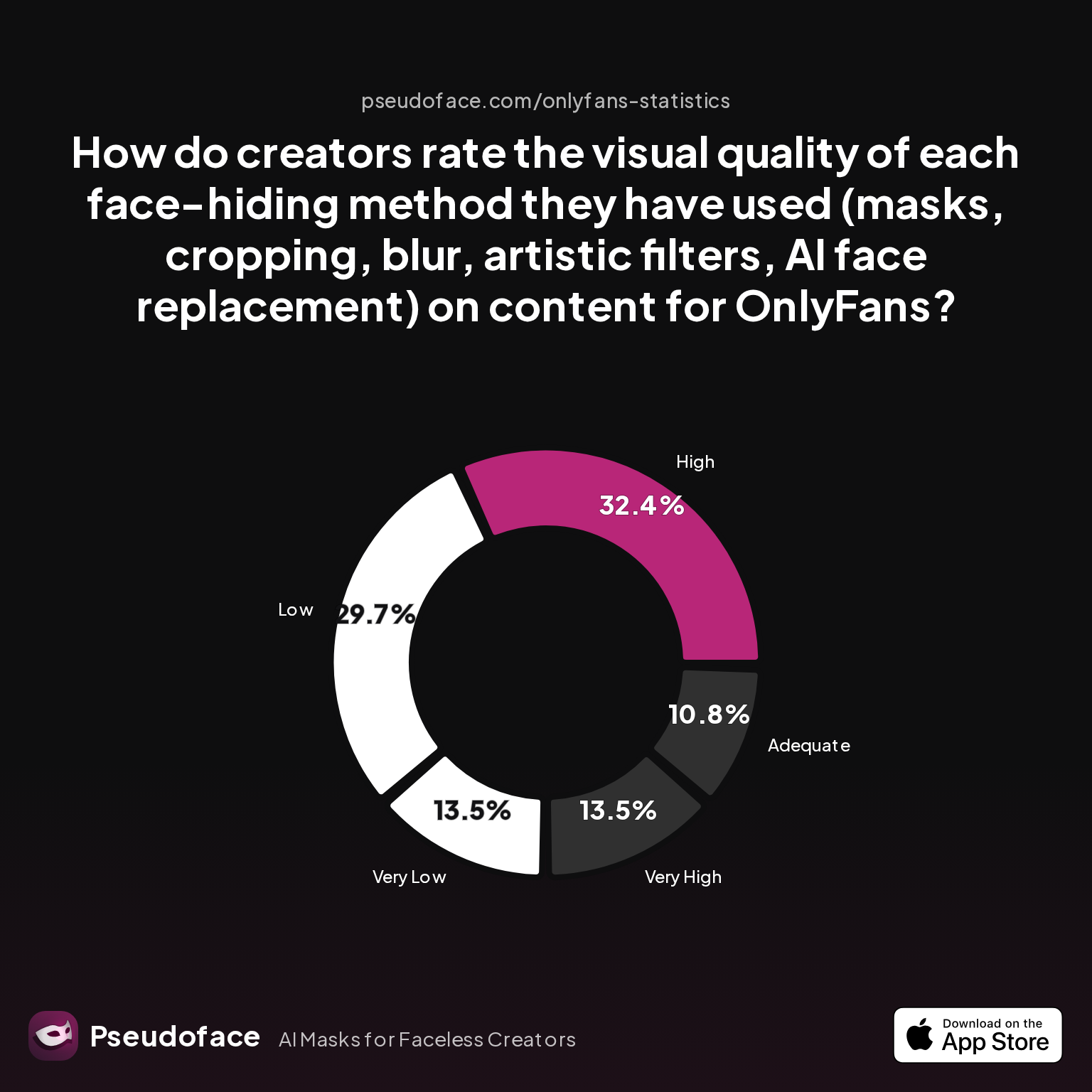
Even if you’ve found a workflow that feels safe, does it look the part? Professional creators scrutinize their output with the eyes of a paying client—or a potential privacy adversary.
| Answer | Percentage |
|---|---|
| Adequate | 10.81% |
| High | 32.43% |
| Low | 29.73% |
| Very High | 13.51% |
| Very Low | 13.51% |
Less than half of creators (45.9%) rated their own visual quality as “high” or better after face hiding, while 43.2% rated it “low” or “very low.” The result: creators who prize professionalism are incentivized to push their workflows further, adopting hybrid, iterative tricks to match subscriber expectations.
Manual face swaps in Photoshop or Pixlr, while time-consuming, are becoming a hallmark of top-earning, long-form OnlyFans and Patreon creators. Even here, audience context matters; an “artsier” platform may reward playful filters, but on subscription platforms, a low-effort AR mask often gets flagged as unprofessional.
Upscaling, Blurring, and Filter Removal: Overcoming “Amateur” Limits in Post
Even after masking, the fight for quality isn’t over. Snapchat and AR-based workflows routinely reduce your output to 720p, sometimes with heavy compression or filter artifacts. Post-production upscaling has thus become a crucial “fix”—though it brings both opportunity and risk.
Desktop upscaling tools like Topaz Video Enhance AI, Adobe Premiere’s neural filters, or Resolve’s super-scaling can boost output to 1080p or even 4K. Yet, these tools often amplify artifacts inherent in the original masked video (blurred color bands, ghosting, or filter “haloes”). True professionalism isn’t just about pixel count, but about natural, human-like image quality.
“Removing” a Snapchat filter after the fact poses another thorny issue. While some AR overlays can be reversed in the mobile app (within a few minutes of export, and only for certain filters), filters that warp, blend, or cartoonize facial features leave permanent changes in the video data. For creators, this means:
- Plan your masking workflow with reversibility in mind.
- Always retain an unfiltered master, in case you need to rework or change masking methods.
Creators who work exclusively in post-production have developed new best practices:
- Mask first, upscale second.
- Use non-destructive workflows, saving layered projects.
- Always review frames where the face comes close to the mask edge, as these spots are especially prone to tracking errors and reveal risks.
Reddit discussion echoes this complexity:
Open thread on Redditr/CreatorsAdvice
u/Moneyovermadness
You can apply a filter on Snapchat after the video is made… But it only works for three minute videos so that’s the only problem. I don’t know what was wrong with my face last week, but I literally looked horrible after I got done filming because of the lighting in my room… I went on Snapchat and put a soft make up filter over my seven minute video. First, I had to split it into three different partswith a video editing app… And then I did the filter in Snapchat and then put it back together afterwards. Yes, it was a lot of work, but was worth it in the end.
The takeaway: Every workflow involves tradeoffs. Filters applied too late can’t be reversed, while overly aggressive upscaling rarely produces “cinematic” results. The only substitute for careful, redundant editing is starting over—an expensive and demoralizing prospect for creators working to tight deadlines or with limited time.
Workflow Matchmaker: Which Faceless Method Actually Fits Your Platform and Audience?
With so many moving parts, the question becomes: Which workflow is actually right for you? Your platform, audience, and intended content quality largely determine the best tool for the job.
Summarizing both chart data and lived creator experience (with all the caveats of selection and context bias):
- Mobile-only AR filters (Snapchat, Instagram): Best for throwaway, low-stakes, temporary posts. Quick, but locks you into 720p. Not recommended for paid or HD content.
- Browser or Chrome AR plugins: Good in a pinch, but risk unreliability and privacy leakage. Use only for short lives or one-off webcam uploads.
- Manual desktop editing (CapCut, PutMask, DaVinci, Premiere): Most robust for professional quality, customizable masks, and post-hoc reversibility. Demands editing skills and time.
- Face swap tools (Photoshop, Pixlr): Best for maximum anonymity and creative control—especially where “artistic” looks are acceptable or even desirable.
- Hybrid workflows (AR > edit > upscale): Ideal for creators who want the security of live masking plus the polish of post-production. The learning curve is steeper, but results consistently rank higher in both visual and professionalism scores.
For those switching platforms, such as moving from TikTok stories to OnlyFans paywalled uploads, matching your workflow to both the technical requirements and the cultural expectations of the platform pays dividends. As of early 2026, the ceiling for faceless professionalism is defined not by raw resolution, but by seamless integration and retention of “realness” despite masking.
Troubleshooting, Privacy Leaks, and Real-World Edge Cases
No workflow is flawless. Even the most careful creators face risk: face tracking may fail mid-recording, filters may “slip,” and export quality can fall short under certain lighting, movement, or technical glitches. The most-reported real-world headaches are:
- App reliability: Crashes, freezes, and watermark exports still plague both entry-level AR apps and some paid software (see earlier reliability stats).
- Tracking errors: Moving, turning away from the camera, or poor lighting can lead filters—especially web-based ones—to slip, momentarily revealing real features.
- Resolution drop: Upscaling poor source video sometimes amplifies flaws, undercutting the “professional look” essential for premium content.
Expert creators deal with this by:
- Always keeping master unmasked and masked edits.
- Reviewing videos frame-by-frame before upload.
- Using redundancy: for example, a combination of manual blur + mask overlay to guarantee full coverage.
The emotional burden is real. Many Reddit users recount the “paranoia check” ritual: scanning each video output for accidental reveals, especially at scene transitions or during fast movement. Being faceless online pays privacy dividends, but it also means accepting a more complex, less predictable pipeline than simply “applying a filter.”
Open thread on Redditr/onlyfansadvice
u/mmmolly_riot
I have this mask in white! I think it shows enough to tell who you are for sure
True anonymity is a process, not a product—a mindset that continues to define professional creator workflows on PC and beyond.
Frequently Asked Questions
Q: Can I use Snapchat filters for live streaming on PC in 2024?
Yes, but with significant limitations: SNAP’s own tools cap at 720p and only support live AR masking via the web version in Chrome or Edge. Based on Pseudoface’s dataset, few creators find this satisfactory for high-res, professional content, often experiencing lag, crashes, or lack of filter fidelity.
Q: Which desktop apps support Snapchat-like AR masks in HD?
PutMask and manual editing tools like CapCut Pro or DaVinci Resolve support 1080p or higher output, but require manual setup and mask tracking. True Snapchat-like real-time AR masking is rare on desktop, and browser AR plugins are much less reliable than dedicated desktop editors.
Q: Is there a way to add a filter to a pre-recorded video (not live) on PC?
Yes—by using CapCut, YouCut, or advanced editors like Photoshop (face swap) or Pixlr for overlays. User experience and satisfaction are much higher with these than with browser plugins, especially for videos longer than a few minutes or above 720p.
Q: How do I upscale a Snapchat-filtered video to avoid looking amateur?
Use post-production upscaling tools (like Topaz Video Enhance AI) after masking, but beware: upscaling cannot fully restore detail lost in the original filter pass. Professional creators upsample only masked masters to retain as much realness as possible.
Q: What’s the risk of privacy leaks when using desktop face filters?
Tracking errors, app crashes, or filter “glitches” can momentarily expose unmasked features, especially where automatic filters fail to follow movement. Pseudoface’s creator data shows over a third of reported app issues involve failed tracking—always manually review outputs before publishing.
Q: Does Snapchat let me remove a filter after recording? How?
Snapchat only allows filter removal for certain effects within a very short window after recording, and only via the app; for most AR masks, changes are baked into the video data. Manual editing or re-masking the original video in desktop software is the safest workaround.
Q: Are face swap tools like Photoshop or Pixlr more effective than Snapchat AR masks?
Generally yes—face swap workflows offer superior control over anonymity and visual polish compared to real-time AR filters, especially for pre-recorded, HD, or paid content. However, these require more editing skill and time investment.
Q: Which method looks most professional to paying subscribers?
According to Pseudoface’s analysis, subscribers rate manual blurring and full mask overlays as most professional; playful AR filters and AI face replacement rank much lower for premium audiences, though audience and platform context still matters.
Q: How can I automate facial masking for long/complex videos on desktop?
Apps like PutMask or CapCut offer semi-automated face tracking, but reliability is mixed. Over 75% of Reddit creators report at least occasional missed frames or tracking failures, so always combine automation with manual review.
Q: What’s the best workflow for keeping my identity hidden if I switch platforms (e.g., from TikTok to OnlyFans)?
A hybrid manual workflow—using robust masking (physical/AR or post-production) plus video review—best preserves anonymity across platforms, since export filters often fail or degrade in quality during re-upload.
Bottom line: For privacy-first creators in 2025 and beyond, Snapchat filters for PC are merely a starting point. Staying anonymous with professional polish means combining multiple tools, mastering desktop workflows, and staying vigilant for privacy risks at every step. Always prioritize control and redundancy—your content, reputation, and safety depend on it.


