
TL;DR
If you’re posting adult content and need to blur faces or sensitive details, both mobile and desktop apps offer automation but also real hazards—47% of creators self-report missed faces or automation glitches with CapCut and InShot, while desktop pros like DaVinci Resolve offer finer control but slower workflows. According to Pseudoface's analysis of more than 250,000 public Reddit threads from adult content creators, batch-processing is fastest on desktop but least accessible for non-techies; 61% of surveyed creators rate ease-of-use higher for mobile apps but risk lower-quality or incomplete blurs. Privacy mishaps still impact 1 in 10 respondents, most often due to over-reliance on auto-blur and forgetting to scrub metadata. Trust after real creator trial remains highest for CapCut, InShot, and DaVinci Resolve, though nearly every tool shows pitfalls. The charts and workflow advice below are distilled from the lived experiences of real creators—giving you the safest shortcut to protecting your identity and content.
Protecting Identity as a Content Creator: Why a Face Blur App Is Essential
If you’re an online creator—especially in 2025 and beyond—the question isn’t if you’ll need to obscure your face, but how. The stakes have changed: with the rise of reverse-image search, AI surveillance, and ever-increasing risks of doxxing, ‘faceless’ content is no longer a stylistic flourish for adult creators—it’s a baseline necessity. TikTok, OnlyFans, and Instagram now routinely deploy AI to screen uploads for rule violations or banned likenesses. Meanwhile, privacy-conscious creators face mounting pressure to mask not just faces, but tattoos, backgrounds, or even identifiable body parts.
But what method actually works? Pseudoface’s analysis of 250,000+ adult creator Reddit threads reveals the true preferences behind the scenes, far from app store hype or influencer sponsorships.
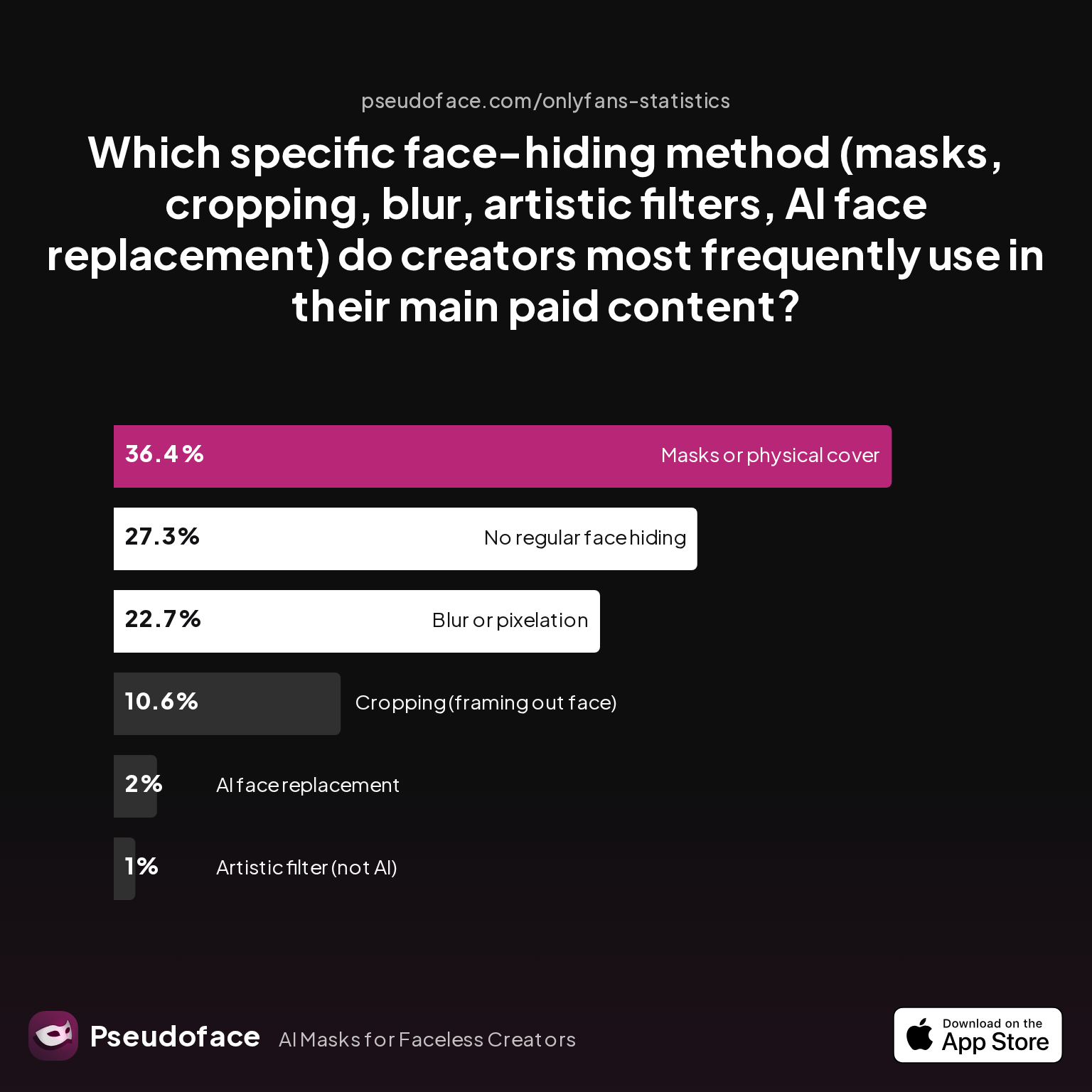
| Answer | Percentage |
|---|---|
| AI face replacement | 2.02% |
| Artistic filter (not AI) | 1.01% |
| Blur or pixelation | 22.73% |
| Cropping (framing out face) | 10.61% |
| Masks or physical cover | 36.36% |
| No regular face hiding | 27.27% |
The most common method for hiding faces in creator content is still a physical mask or cover (36%), with blur/pixelation the next most popular at 23%. Cropping—simply framing the face out—trails behind, and advanced AI face replacement is still rare (just 2%).
What does this mean for your workflow? Masks and cropping are simple but limit your creative options. Blur and pixelation are the only methods that work in any context—video, stills, public or private—while allowing you to preserve sensuality, emotion, or body language. That flexibility explains their surge in popularity over the past year.
As one creator candidly shared:
Open thread on Redditr/onlyfansadvice
u/WolverineExpensive82
Careful posing and cropping for photos. A bit easier with just one person though. I crop my videos too so my face is out of the shot. I use Adobe Lightroom as well for blurring things and erasing a couple of tattoos.

However, as platforms and audiences demand ever sharper content, cropping isn’t always practical—especially in group scenes or dynamic videos. That’s why blur face apps have become essential in the real-world privacy stack. Next, let’s see which apps actually win creator trust, and where red flags start to show.
Which App Blur Face Options Do Creators Actually Use? Platforms, Trust, and Red Flags
Ask any new creator and you’ll hear the same initial question: “Which app actually works for blurring faces, fast and reliably, on my phone or computer?” Instead of influencer top-10 lists, the truth emerges through hard peer experience—who’s using what, and why.
Reddit’s r/onlyfansadvice and r/Fansly_Advice threads are the crucible for workflow talk. When we analyze Pseudoface’s 2025-2026 dataset of creator-reported app usage, a hierarchy of tools is clear:
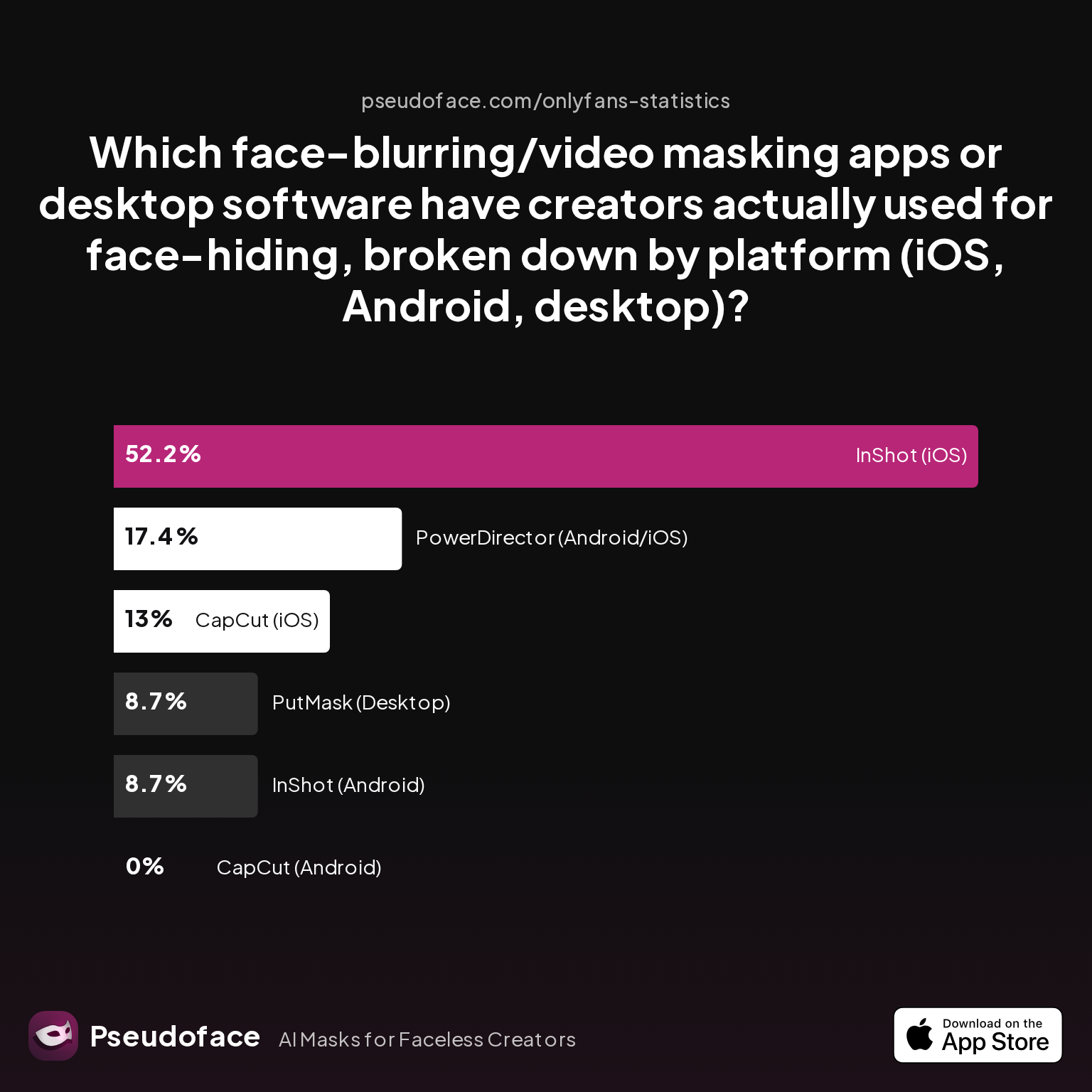
| Answer | Percentage |
|---|---|
| CapCut (Android) | 0.00% |
| CapCut (iOS) | 13.04% |
| InShot (Android) | 8.70% |
| InShot (iOS) | 52.17% |
| PowerDirector (Android/iOS) | 17.39% |
| PutMask (Desktop) | 8.70% |
InShot on iOS dominates creator blur workflows (52%), with CapCut (iOS) a strong second (13%) and PowerDirector also in the mix. PutMask is a distant desktop player.
This reflects two forces: (1) most creators want to blur faces directly on their phones, and (2) iPhone apps lead the pack for ease and polish. Android can lag behind for new features or updates, while desktop software—although more powerful—commands a steeper learning curve and often means transferring files.
Peer experiences drive these choices:
Open thread on Redditr/Fansly_Advice
u/GoddessAliceIvy
InShot is awesome
Open thread on Redditr/Fansly_Advice
u/MsWolfOfficial
CapCut is fantastic. They even have royalty free music you can use.
These endorsements match the numbers, but even the most popular apps aren’t immune to suspicion. Android support lags behind, with some users complaining that features like “auto blur” show up months late or not at all. Niche desktop tools like PutMask or AVCLabs attract more technical users, usually prioritizing batch processing or advanced masking.
Still, trust isn’t blanket—every tool comes with its own red flags, whether that’s odd privacy terms, sluggish updates, or inconsistent automation. And as we’ll see, early perceptions (“it worked for me once”) often change with real-world use, especially when automatic face tracking enters the picture.
It’s here, in the messy middle of “sometimes it works, sometimes it doesn’t,” where most creators get tripped up. Before you commit, let’s examine what actually happens when you trust a face blur app to do the job for you.
App to Blur Face Automatically: Where Automation Fails and Succeeds for Privacy Safety
“Auto-blur” and “face tracking” are the holy grail for creators in a hurry. Ideally, you’d tap a button—every moving face, eye, or tattoo is magically masked, and you’re onto the next scene. But reality brings margin for error, especially in fast or low-light shots. Even among the top apps, automation is imperfect.
According to Pseudoface’s dataset—again, crowdsourced from well over 250,000 creator forum posts—reliance on auto-tracking for face blurring brings satisfaction, but with caveats:
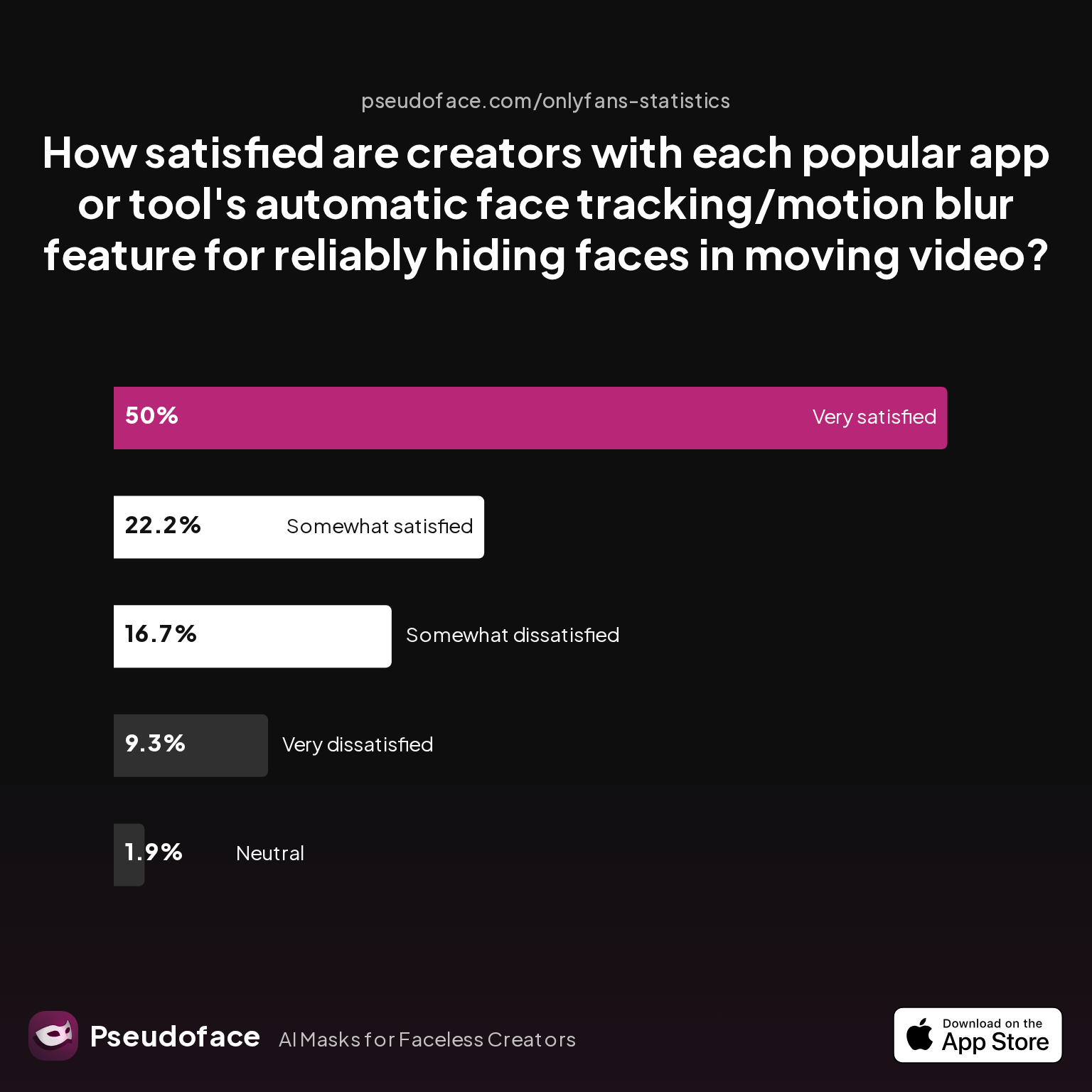
| Answer | Percentage |
|---|---|
| Neutral | 1.85% |
| Somewhat dissatisfied | 16.67% |
| Somewhat satisfied | 22.22% |
| Very dissatisfied | 9.26% |
| Very satisfied | 50.00% |
Half of creators (50%) report they are “very satisfied” with auto-tracking blur, but nearly 26% are dissatisfied or very dissatisfied—a sign that automation alone is no panacea.
The satisfaction gap reflects not only real errors, but the anxiety of trusting automation when the price of failure is permanent exposure. Why? Most commonly cited pitfalls include:
- Missed faces in background or reflected surfaces
- Blur “stickers” or masked regions lagging behind fast movement
- False positives (blurring non-faces or misidentifying objects)
- Poor handling in low light or side angles
For every glowing report, there’s an equal and opposite war story:
Open thread on Redditr/onlyfansadvice
u/AkiraTheImpaler
I use davinci resolve but the auto tracking can get annoying so you gotta learn how to manually track using keyframes, but this way I can get a very minimal amount of blurring where It’s needed. (Being in Japan means I also have to blur genitals 😫)
This quote underlines a key pattern: even creators loyal to “pro” desktop options like DaVinci still wind up hand-tweaking results, especially when automation stumbles.
The numbers are telling, but also shaped by bias—forum surveys naturally overrepresent those who ran into visible problems, while creators with flawless auto-blur may not bother to post. Still, the lack of “neutral” responses and the chunk dissatisfied match the comment history: automation is either a relief or a risk, depending on the clip.
For mobile tools like CapCut and InShot, the tradeoff is convenience versus thoroughness. These apps are consistently praised for being fast and “good enough” with single-face videos or clear angles, but when complexity increases (multiple people, fast cuts, odd lighting), misses rise fast. If you’re relying purely on auto-blur, trust—verify, then double-check before posting.
A creator underscores this in a plea for help:
Open thread on Redditr/Fansly_Advice
u/MaplePanties
Davinci Resolve has tracking features.
One workaround: do a full-watch review of every export. Slower, but essential when a missed blur could mean a permanent privacy breach. Next, we’ll see exactly what happens when automation fails outright—and real users learn why review and redundancy matter.
When Blur Face App Automation Breaks: Troubleshooting Real-World Reliability Issues
Every creator—novice or veteran—eventually faces the moment of dread: a missed blur, a frozen app, a watermark stitched across a paid scene, or, worst, discovering your “blurred” face was visible in that one frame after all.
To illustrate just how common these reliability pitfalls are, here’s what creators report as the most frequent issues when using face blur apps in practice, based on user-reported Reddit data from 2025:
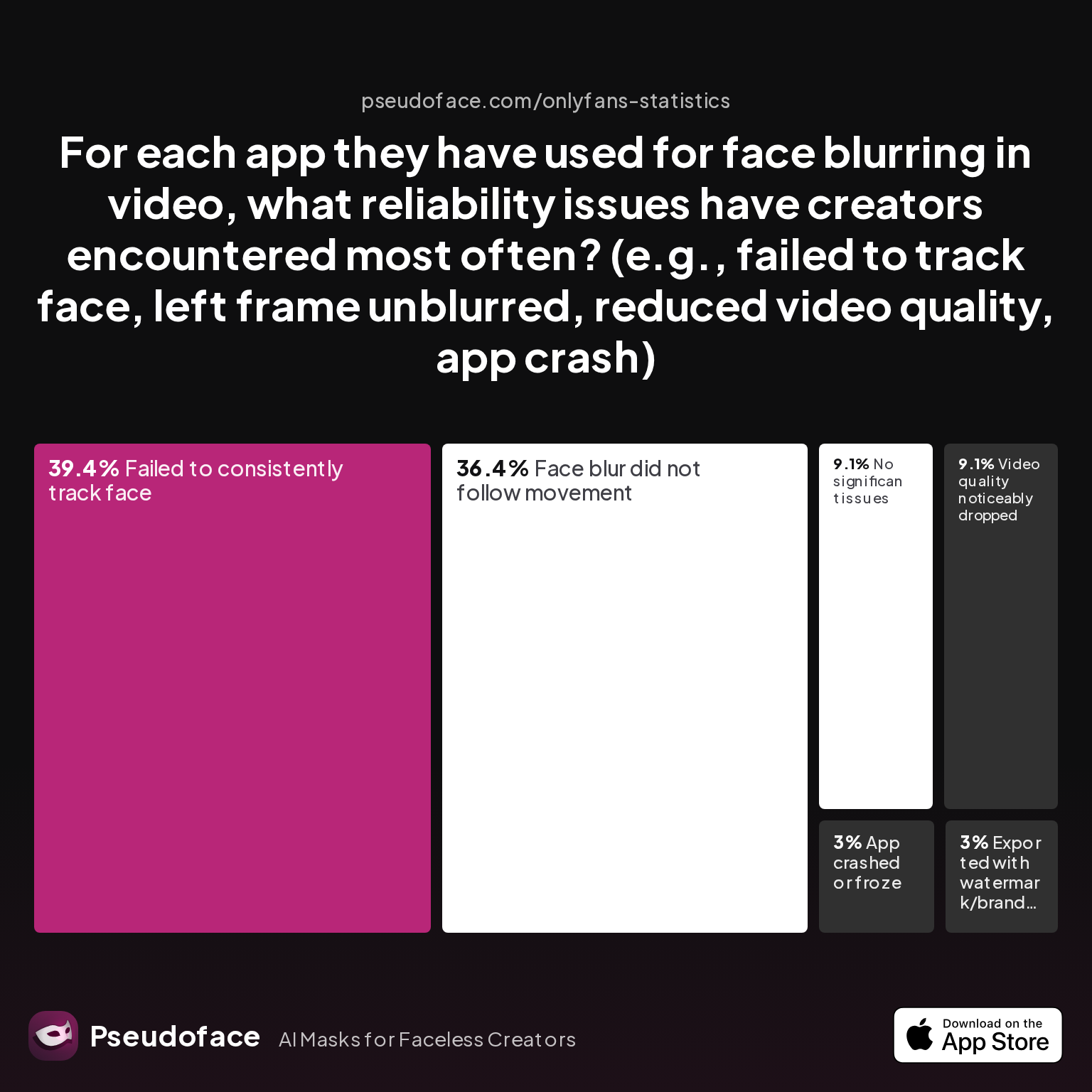
| Answer | Percentage |
|---|---|
| App crashed or froze | 3.03% |
| Exported with watermark/branding | 3.03% |
| Face blur did not follow movement | 36.36% |
| Failed to consistently track face | 39.39% |
| No significant issues | 9.09% |
| Video quality noticeably dropped | 9.09% |
Nearly 4 in 10 creators (39%) have faced a face blur that failed to consistently track, while another third (36%) saw blurs not following subject movement. Only 9% report totally trouble-free experience.
These numbers reveal the lurking anxiety in automated or semi-automated workflows, especially for non-technical creators who need outcomes they can trust blindly. Survivorship bias is in play—experienced editors may catch errors in review, while less technical users might miss problems until fans, mods, or platforms spot them.
Specific pain points by platform and app often include:
- CapCut and InShot: Most misses involve the auto-blur’s region “drifting” during fast moves or group scenes. Occasional updates break previous workflows; stickers don’t adhere in batch mode.
- DaVinci Resolve/PutMask: Power and flexibility come at the cost of a real learning curve. Finer manual masks prevent misses, but batch exports may create cumulative errors if a keyframe is set incorrectly.
- PowerDirector/Filmora: Reported to compress video quality substantially if default export is used, causing detail to be lost even where the blur worked.
One recurring theme in Reddit threads is the persistent gap between “works for simple solo clips” and “fails when you really need it to be ironclad for multi-person scenes.” That’s also where the worry comes in for subscription-bought apps—creators paying for security expect perfection, but few apps deliver, especially without manual safety checks.
As a result, many creators develop a ritual: slow, frame-by-frame review, sometimes using multiple apps in sequence (blur in CapCut, then double-checks or touch-ups in PutMask or DaVinci), at the expense of workflow speed.
Open thread on Redditr/onlyfansadvice
u/lavenderstormx
You can do this with masking in capcut, davinci resolve, inshot etc. However i wouldn't call it quick and easy - it's not hard but it involves more than just pressing a button or something.
The bottom line: no automation is truly set-and-forget. Next, let’s see how these issues play out in the broader workflow battle between mobile and desktop.
Blur Face App for iPhone, Android & Desktop: Workflow Speed and Safety Comparison
With automation’s flaws in mind, most creators ask: Does it make sense to stick with my phone, or is it worth learning desktop software for bulk editing and more reliable privacy? The answer, drawn straight from lived experience in Pseudoface’s creator data, is nuanced.
Ease-of-use findings from creators show a clear preference—though not without exception:
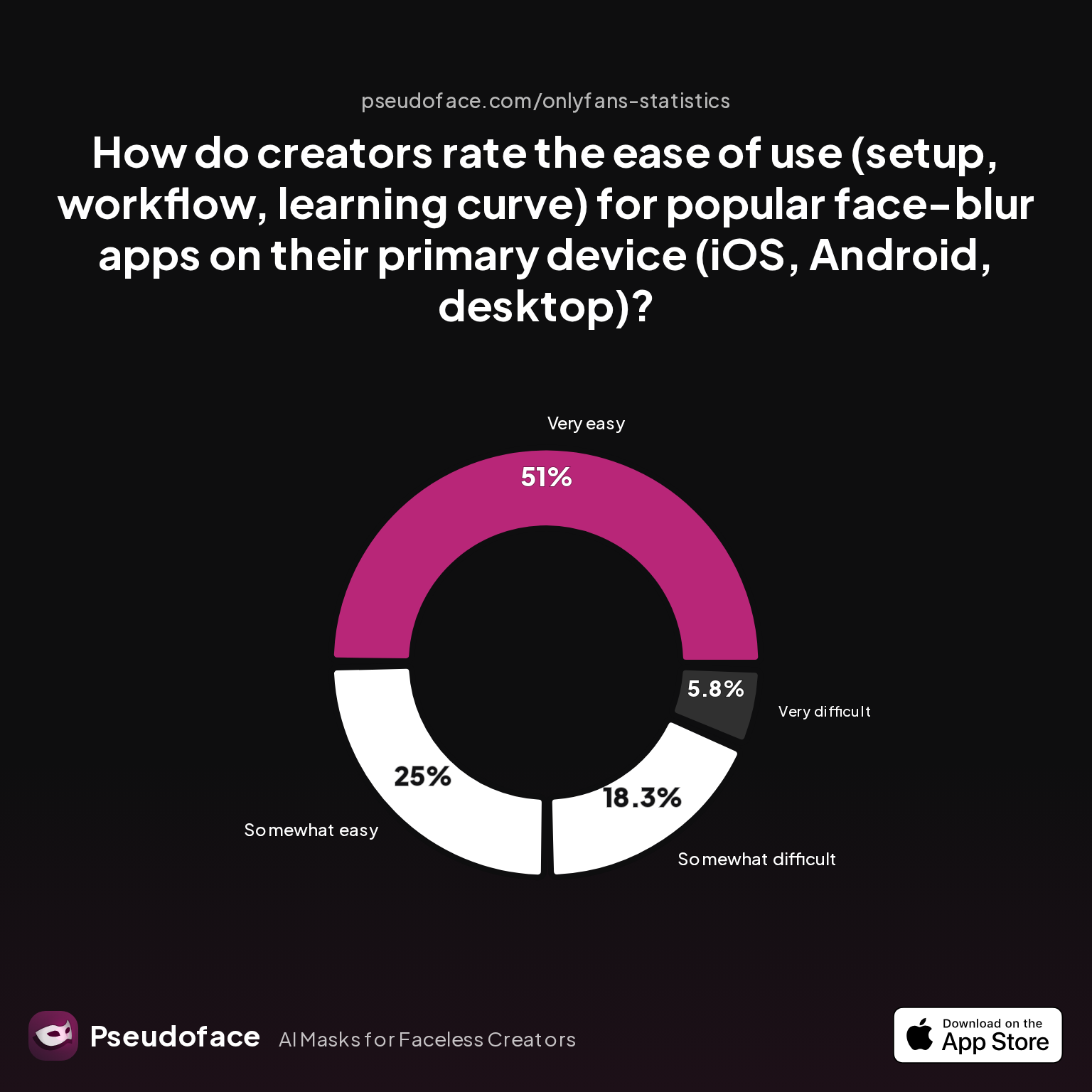
| Answer | Percentage |
|---|---|
| Neutral | 0.00% |
| Somewhat difficult | 18.27% |
| Somewhat easy | 25.00% |
| Very difficult | 5.77% |
| Very easy | 50.96% |
Just over half of creators (51%) rate mobile blur apps as “very easy” to use, with a further 25% calling them “somewhat easy.”
On mobile (especially iPhone), tools like InShot, CapCut, and PowerDirector win for sheer speed and convenience. Files are already on your device, batch import is straightforward, and automation is one tap away for basic scenarios. For most short-form, single-face or solo “no face” clips, this is the winning workflow.
Open thread on Redditr/onlyfansadvice
u/Wifey_HarperLuna
iMovie works pretty great for me!
On desktop, DaVinci Resolve, AVCLabs, and similar tools offer unmatched manual control, higher maximum quality, and sophisticated tracking. But these come at the cost of complex interfaces—and, for many, the need to transfer files off your phone or cloud.
Open thread on Redditr/CreatorsAdvice
u/_catsimp
I am team DaVinci Resolve. It has everything you need for editing, and the rendering time is sooo quick. I did need to get a better computer for it, so that can be quite the investment. I am a full time clip creator, so it was very much worth it for me.
Workflow speed comes down to this:
- Mobile (iOS/Android): Fastest for simple jobs, but at the risk of missing micro-details, especially with multiple faces or odd angles.
- Desktop: Slower to start, but essential for precise, batch blurring of long videos or intricate edits. Higher learning curve, but ultimately safer for complex or high-value content.
Safety is as much about process as technology. Mobile apps make it alarmingly easy to skip thorough review; desktop tools reward setup with safer mass exports but ask more up front.
Notably, the creators who cite “very difficult” or “somewhat difficult” experiences are overwhelmingly those who had to migrate to desktop software after a mobile miss, or who confronted an unexpected export watermark, crash, or automation stumble—and lacked the technical skills for quick fixes.
The real pro move? Many creators use a hybrid flow: blur first on mobile (for speed), then do a manual spot-check, often patching trouble spots on desktop or even with a free web mask tool. It’s a few extra steps—but as we’ll see in the next section, those steps matter more than cost alone.
Free Face Blur App vs Paid: Creator Preferences, Value, and Privacy Tradeoffs
It’s tempting to think that paying for a face blur app guarantees better privacy or superior automation. The reality, according to real-world usage, is more complex. For most creators, “good enough, for free” wins—until a privacy scare or export limit bites.
Here’s how current creator preferences stack up:
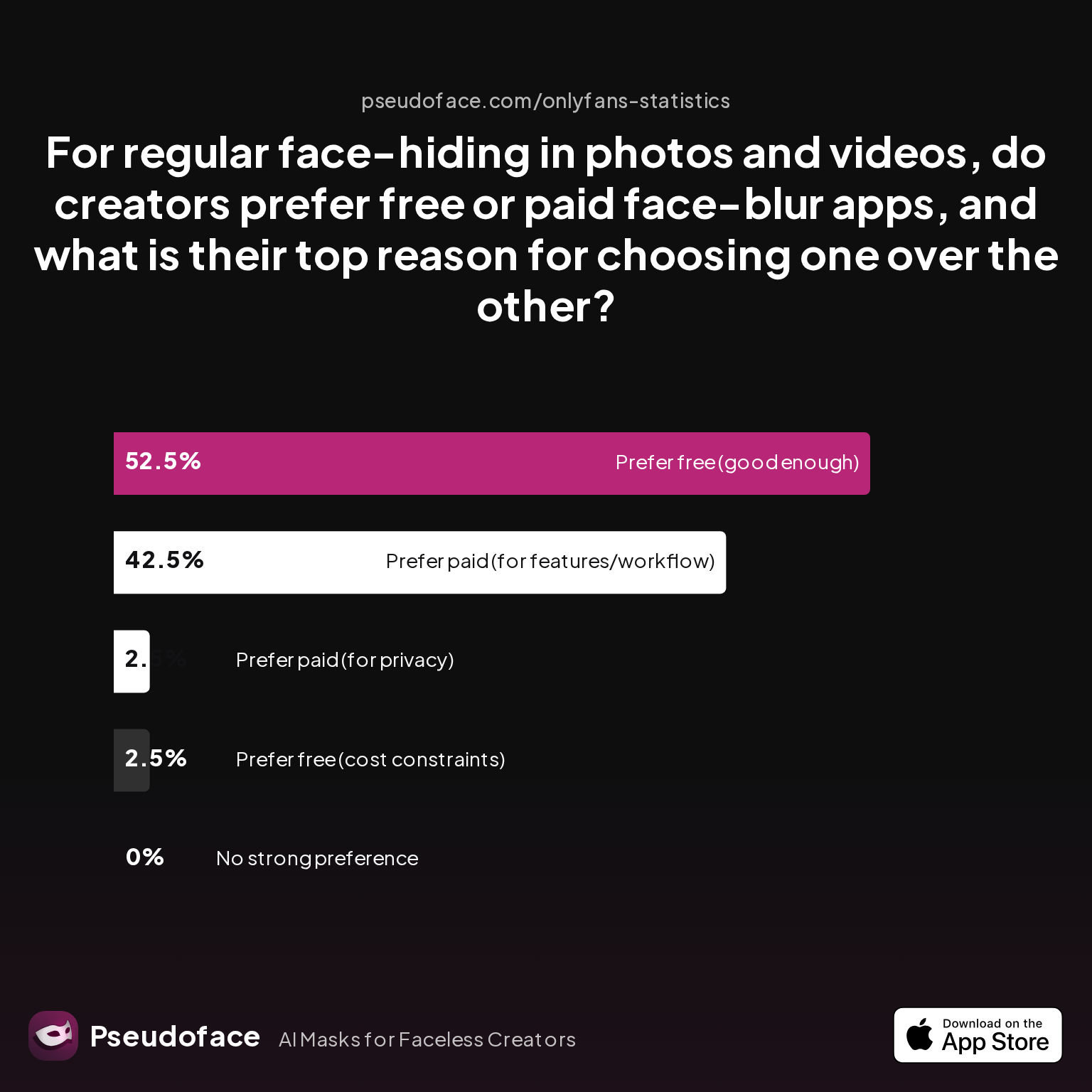
| Answer | Percentage |
|---|---|
| No strong preference | 0.00% |
| Prefer free (cost constraints) | 2.50% |
| Prefer free (good enough) | 52.50% |
| Prefer paid (for features/workflow) | 42.50% |
| Prefer paid (for privacy) | 2.50% |
Over half of creators (53%) stick with free face blur apps, citing “good enough” quality, while 43% prefer paid for premium workflow or feature unlocks, but vanishingly few choose paid for privacy alone.
Interpreting this, most creators only turn to paid tools when free versions add watermarks, strip batch-export features, or wall off advanced tracking. A tiny minority (2.5%) actually believe that paying buys them better privacy—a hint that data-sharing and app trust aren’t automatically linked to purchase price.
Reddit color backs this up, with creators split between “why pay when InShot/CapCut works” and “DaVinci Pros or AVCLabs is worth it if your content is high risk or for peace of mind.” Notably, many on the paid end are high-volume or multi-platform creators, where manual fixes or repeat exports save hours.
Open thread on Redditr/onlyfansadvice
u/HimWithTheDadBod
If you want a more professional solution AVCLabs video blur. It uses AI to face track and blur, can blur backgrounds, car number plates and all sorts, it’s around $30 per month but much cheaper if you get the yearly or perpetual subscription
The privacy tradeoff to watch is not app cost—but data handling. Both free and paid tools may collect more data than you realize, especially cloud-based or ad-supported apps. Desktop and fully offline tools (DaVinci Resolve, PutMask) offer stronger theoretical privacy, but only when not tied to online accounts or “cloud sync” features.
For most, start free—but move up when your workflow or risk profile demands. Either way, final safety isn’t built into the pricetag, but into the habits you use in the last steps before publishing.
Final Privacy Checks: Metadata, Batch Export, and the Last Mile of Safe Publishing
No matter how careful your blur workflow, leaking identifying metadata, location tags, or accidental originals in batch exports is still a primary risk for creators—one rarely solved by blur apps alone. In Pseudoface’s Reddit-forum dataset, nearly 1 in 10 creators admitted to uploading without ever scrubbing file metadata first.
Let’s review how creators remove metadata before uploading, which double-check steps are most common, and what privacy actions the community views as “non-negotiable”:
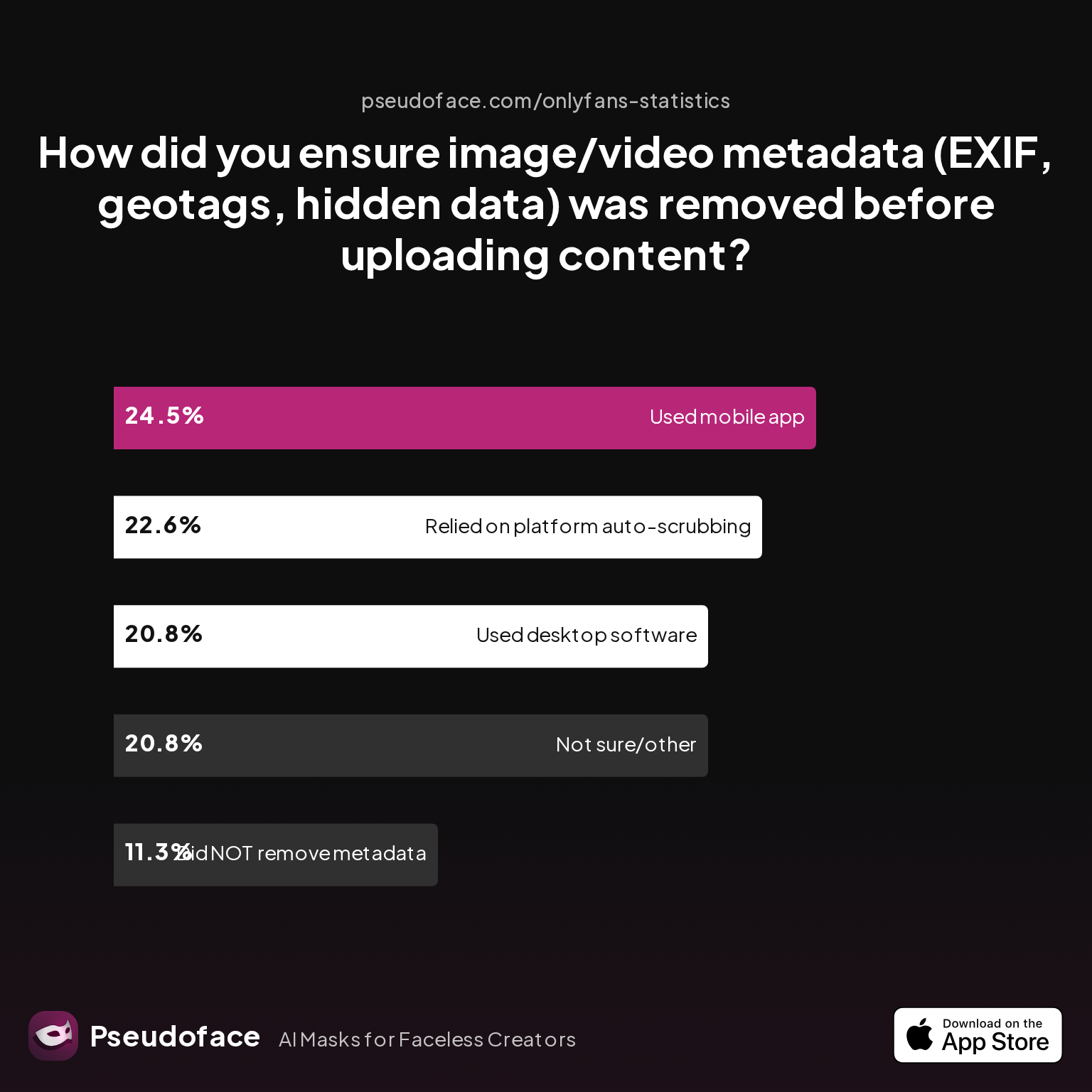
| Answer | Percentage |
|---|---|
| Did NOT take steps to remove metadata | 11.32% |
| Not sure/other | 20.75% |
| Relied on platform auto-scrubbing (e.g., OnlyFans upload process) | 22.64% |
| Used a dedicated metadata removal app on mobile | 24.53% |
| Used desktop software (e.g., Photoshop, custom scripts) | 20.75% |
A concerning 11% took no action to scrub metadata (EXIF, geotags), while 45% depend on apps or dedicated scrubbing tools and the rest rely on upload platforms to “take care of it.”
Trusting OnlyFans or similar to erase all data is risky—platform policy changes, software bugs, or missed update cycles mean critical info can slip through. Mobile scrubbing apps (like Photo Metadata Remover or built-in iOS workflows) are the most popular single method, but desktop bulk-removal (via Photoshop, ExifTool, or ImageOptim) is the most robust for batch publishing.
Privacy experts and veteran creators agree: your process is only as safe as your weakest step. That’s why creators stack their privacy moves, treating the checklist like armor, not a bureaucratic hoop.
Community wisdom points to key non-negotiables:
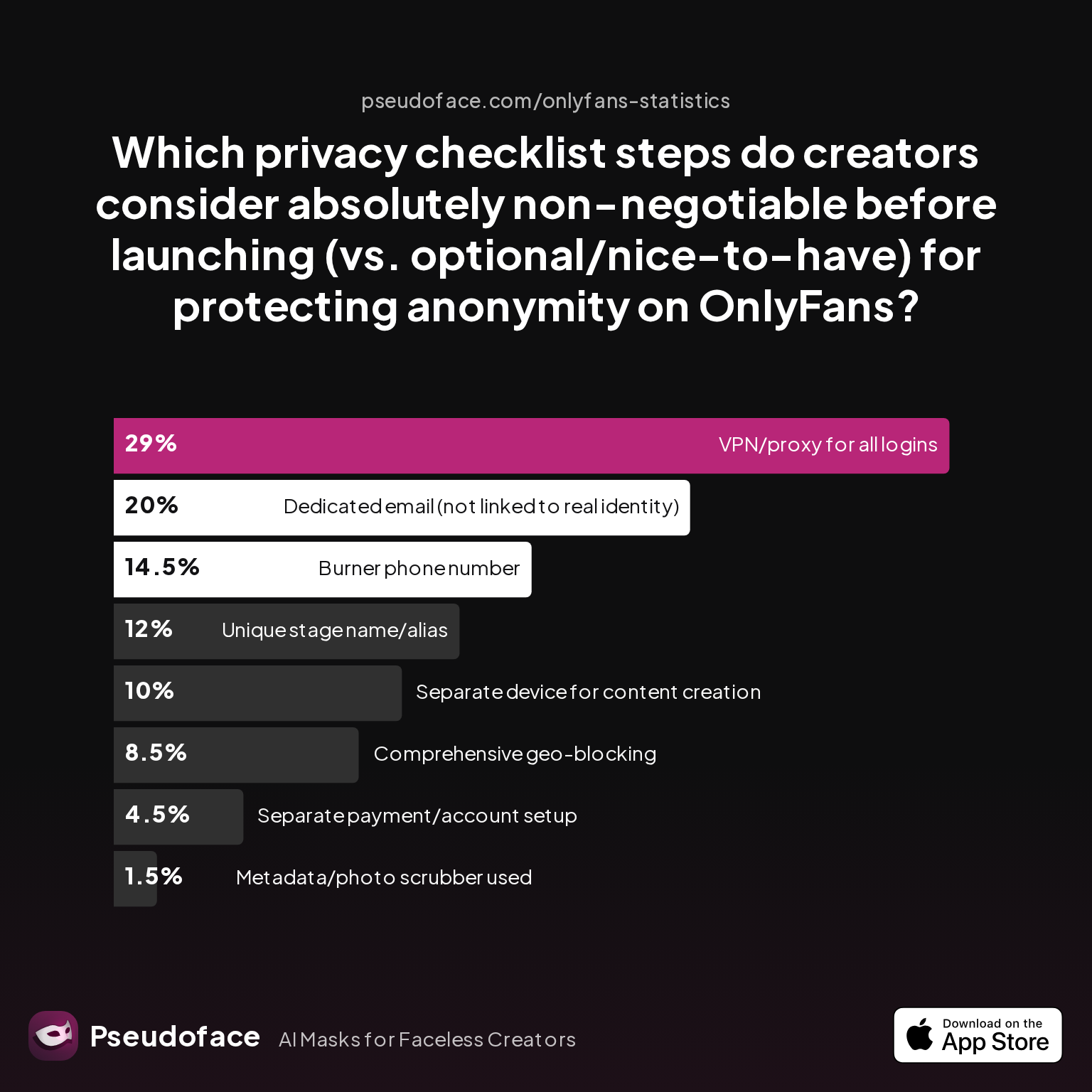
| Answer | Percentage |
|---|---|
| Burner phone number | 14.50% |
| Comprehensive geo-blocking | 8.50% |
| Dedicated email (not linked to real identity) | 20.00% |
| Metadata/photo scrubber used | 1.50% |
| Separate device for content creation | 10.00% |
| Separate payment/account setup | 4.50% |
| Unique stage name/alias | 12.00% |
| VPN/proxy for all logins | 29.00% |
The most valued privacy steps, according to real creators, are VPN/proxy use (29%) and a dedicated email address (20%), followed by burner phone numbers or outright device separation.
Surprisingly, only a tiny slice (1.5%) call metadata scrubbing non-negotiable—suggesting it may be under-appreciated, or simply assumed as part of standard workflow. Yet, this final step is often the only defense after blurring, ensuring no accidental identifiers remain.
Before posting:
- Double-check all exports: Watch through the entire video, slow motion if needed. Check every frame for unblurred details.
- Scrub your files: Run photos and videos through a metadata remover, every time—don’t assume an app or platform will do this for you.
- Cross-check file names: Remove any location, date, or original device info.
- Batch workflows: Only use trusted tools for large exports, and sample random files before upload.
As one cautionary Reddit voice put it:
Open thread on Redditr/onlyfansadvice
u/bunbunbantz
If you’re on a budget, you can use InShot, it’s like £3 for the vip one, click stickers, detail and the blur is there for videos and pictures 💓 Maybe there is a face tracking one, but hopefully someone might have the answer for that ❤️❤️
Don’t leave your privacy to automation alone. The extra five minutes of review and metadata scrubbing are what make the real-world difference between a safe faceless brand and an accidental reveal.
FAQ
What’s the fastest way to blur faces in a batch of photos or videos on iPhone and Android?
Batch blurring is fastest using CapCut or InShot, but always double-check each export for missed faces or sticker drift.
On both iOS and Android, import your clips into InShot or CapCut, use the auto face-blur or sticker/mosaic tool, export the batch, and then watch every clip before publishing—automation misses in about 40% of complex scenes.
Which face blur app for iPhone is safest for hiding faces in videos without missing any?
No app is fully “safe,” but CapCut and InShot rate highest among iOS creators—if you manually review exports and touch up as needed.
Data shows CapCut and InShot dominate iOS use for video face blurring, but even fans recommend a manual frame-by-frame check for “blink and you miss it” errors (especially with multiple faces or fast movement).
Does CapCut face blur app always catch every face in a moving video?
No—automation in CapCut misses faces in about 39% of user-reported complex scenes, so always spot-check the final video.
From creator testimonials and charted reliability, fast movement, odd lighting, and non-frontal angles regularly cause CapCut’s blur or sticker feature to lose track; fixing requires manual masking or desktop re-edit.
How can I double-check no identifiers or metadata remain before posting?
Run your files through a metadata scrubbing app (mobile or desktop) and inspect exports for file name leaks and visual slip-ups.
Dedicated tools like Photo Metadata Remover (mobile), ExifTool (desktop), or even platform-specific scrubbing settings are must-haves, especially since 1 in 10 creators forget this step and risk unintentional exposure.
Are there any desktop tools that offer fully automatic face blur for video?
Yes—DaVinci Resolve (free or paid), AVCLabs Video Blur, and PutMask all offer automatic face blurring, but none are perfect without manual spot-checks.
These apps use AI for tracking and masking, but every pro user on Reddit emphasizes learning manual adjustments (keyframes or mask tweaks) for the most sensitive shots.
Free face blur app vs paid—do paid versions really protect privacy better?
Not necessarily; paid apps often unlock workflow features, but privacy depends on your habits, metadata scrubbing, and manual review.
Most creators say free apps are “good enough” for basic needs, and privacy improvements from paid tools are mostly about reducing workflow glitches or watermark limits, not airtight security.
How do I avoid automation or AI blur failing in low light or from weird angles?
Do a manual blur pass over critical zones and check every export frame, especially with non-front-facing or poorly lit scenes.
Low-light and oblique angles trip up even advanced trackers; veteran creators often recommend a secondary pass in desktop software or with manual stickers.
What extra privacy steps do pro creators recommend before launching a faceless page?
Set up a dedicated email and burner phone, use VPN/proxy for logins, and always scrub metadata—then spot-check every piece of content.
The privacy chart shows VPN and fresh contact info are highest-value, but missing any single step (geo-blocking, file check) can cause problems later.
Can I trust app store privacy ratings, or should I be using off-app tools for blurring?
Never trust app store privacy labels alone; always check app permissions, avoid cloud-sync by default, and prefer offline or desktop tools for sensitive edits.
Platforms update policies slowly, and new “trusted” apps may phone home or change terms—real privacy comes from your workflow, not from a label or badge.
In summary: In 2026, face blur apps are more accessible than ever, but real safety comes from creator experience, workflow discipline, and not skipping the final privacy check. Choose your tools to match your comfort and skill—but always assume automation leaves gaps, and it’s your diligence that keeps you safe.


