
TL;DR
Most successful adult content creators report that stepwise background blur cleanup—especially targeting tattoos, logos, and unique interior features—significantly reduces the risk of being personally identified in their content. Over 60% of creators say manual blur or AI tools are part of their standard workflow, and 79% feel “much safer” after their chosen cleanup process. Based on 2025-2026 data, affordable mobile apps like InShot, CapCut, and Canva’s magic eraser are highlighted by real creators for striking a balance between privacy and content quality. According to Pseudoface's analysis of 250,000+ public Reddit threads from active creators, these actionable steps reflect self-reported results and preferences, though trends may skew toward the most vocal or privacy-conscious users.
Understanding Privacy Threats: Why Background Blur Cleanup Is Essential
The ability to remain anonymous shapes every decision for adult creators, from camera angle to how a bedroom is decorated. While face blurring is an obvious starting point, the statistical reality is that uniquely identifying details lurking in your content’s background are among the leading causes of unintentional exposure. In recent years, creator forums have repeatedly surfaced stories of people being doxxed—not because of a slip of the tongue, but because a piece of wall art or a visible laptop sticker gave away the game.
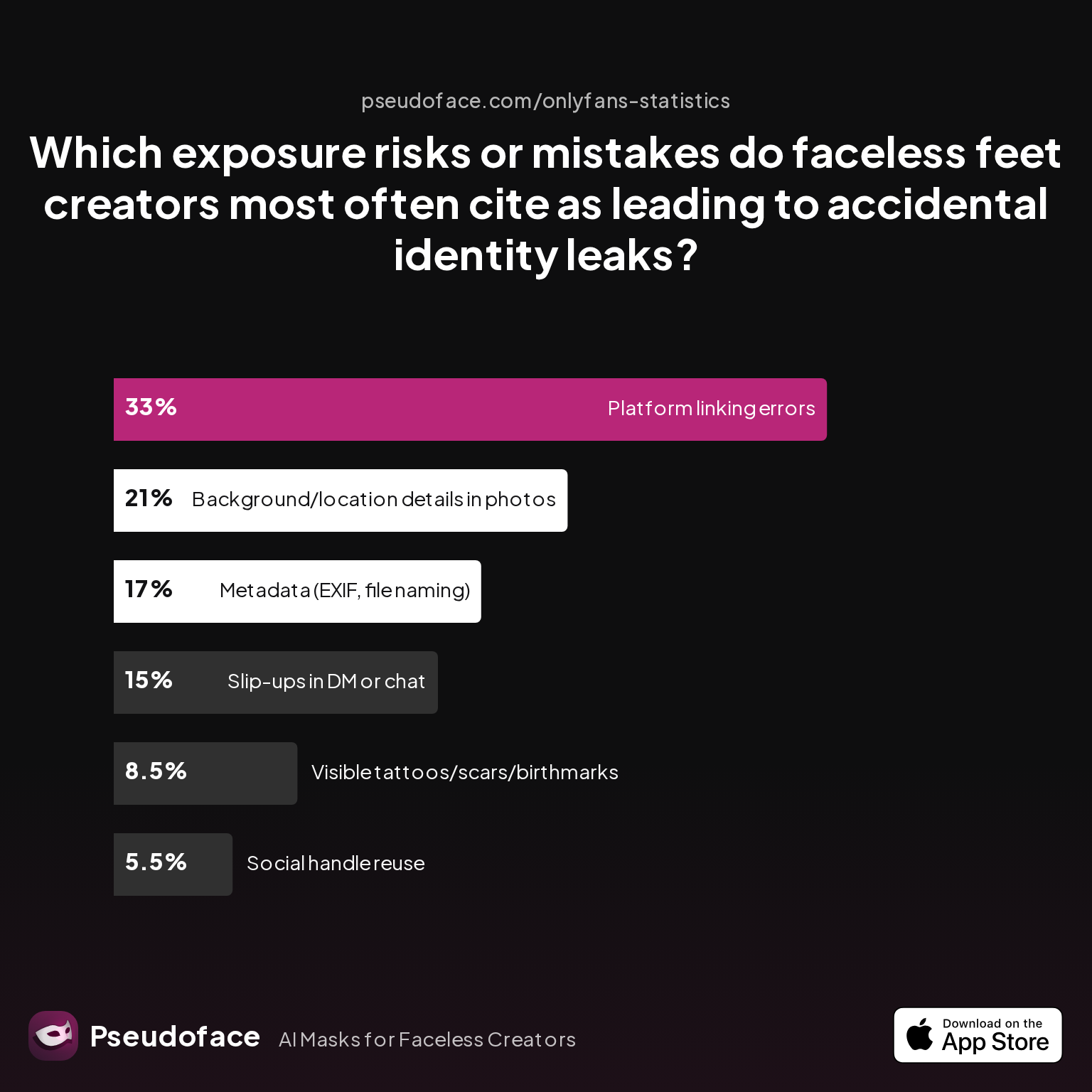
As of early 2026, the exposure risk presented by backgrounds ranks just behind classic digital slip-ups. The data below illustrates how faceless “feet” creators—arguably among the most privacy-focused—identify background clues as a prime source of accidental leaks.
| Answer | Percentage |
|---|---|
| Background/location details in photos | 21.00% |
| Metadata (EXIF, file naming) | 17.00% |
| Platform linking errors | 33.00% |
| Slip-ups in DM or chat | 15.00% |
| Social handle reuse | 5.50% |
| Visible tattoos/scars/birthmarks | 8.50% |
21% of faceless creators cite background or location details in photos as the main cause of identity leaks.
This should immediately reframe how you think about content safety: even with a totally hidden face, a distinctive bookshelf or rare dorm wall color can trigger recognition. In practice, location or background risks outpace “classic” identifiers like tattoos or birthmarks.
Reddit threads regularly echo these pitfalls, layering personal caution on top of the statistics:
Open thread on Redditr/onlyfansadvice
u/Professional-Pepper7
I also labeled the screenshots in order too

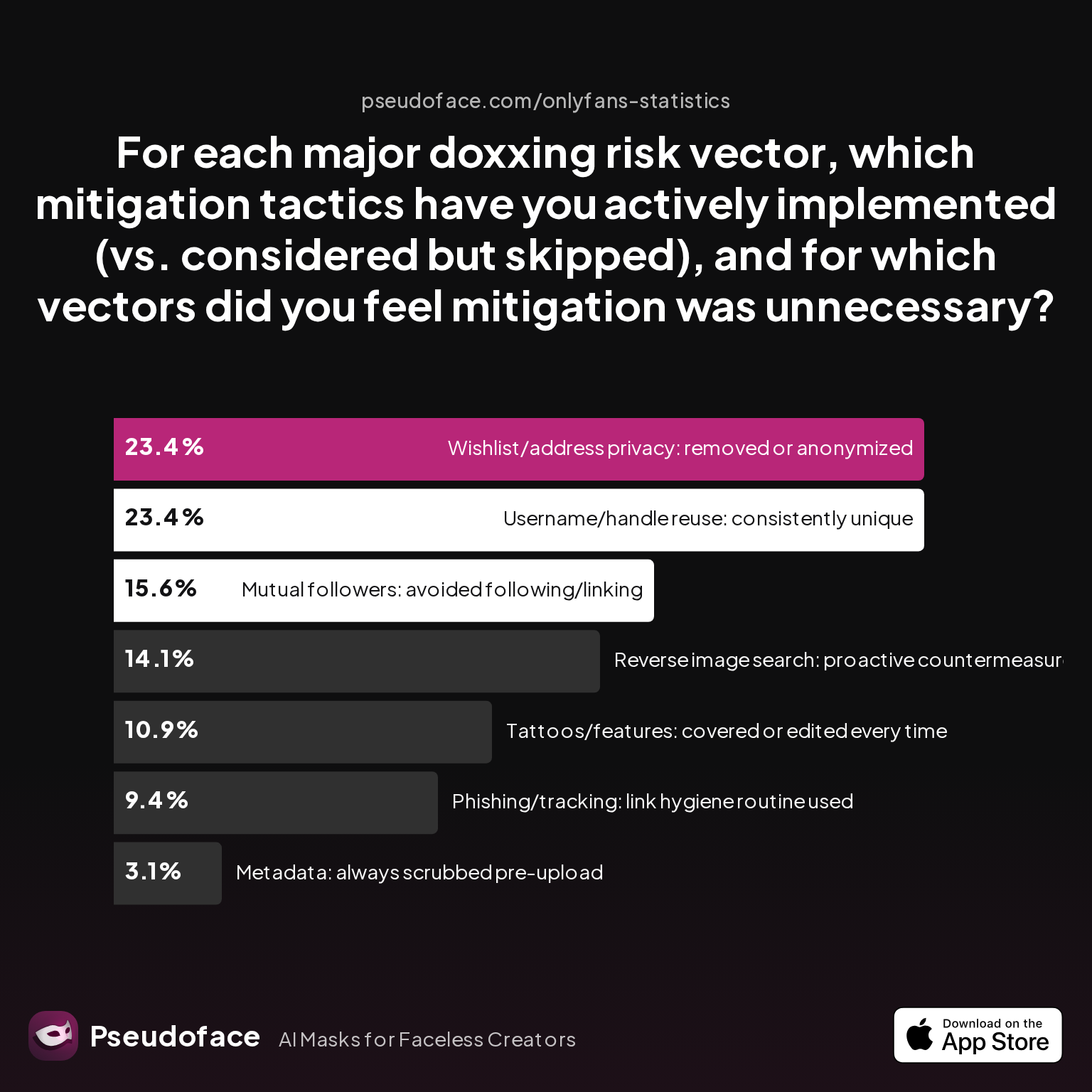
To understand why methodical background cleanup should become a default habit, consider how prevention tactics are distributed across risk vectors:
| Answer | Percentage |
|---|---|
| Metadata: always scrubbed pre-upload | 3.12% |
| Mutual followers: avoided following/linking | 15.62% |
| Phishing/tracking: link hygiene routine used | 9.38% |
| Reverse image search: proactive countermeasures | 14.06% |
| Tattoos/features: covered or edited every time | 10.94% |
| Username/handle reuse: consistently unique | 23.44% |
| Wishlist/address privacy: removed or anonymized | 23.44% |
Despite widespread concern, only about 11% of creators report always covering or editing out tattoos and identifying features, and just 3% say they always scrub metadata before uploading. The gap between concern and consistent action is wide, pointing to the need for approachable, repeatable cleanup workflows—especially for backgrounds.
These findings, drawn from Pseudoface’s large-scale Reddit analysis, reflect the experiences of real creators but are naturally subject to self-selection and recall bias. Those who have experienced doxxing or near-misses may be more likely to speak up, so take these as directional warnings, not universal destiny.
Now that you understand why background cleanup matters, we’ll turn to specific workflow choices—so you can take control before posting.
What Most Creators Actually Blur and Clean Up (With Data)
With the risk landscape in mind, what do creators actually focus on when they blur or clean up backgrounds? Patterns emerge clearly in the data: tattoos, unique art, and room features rise to the top, but choices are deeply personal and influenced by content style.
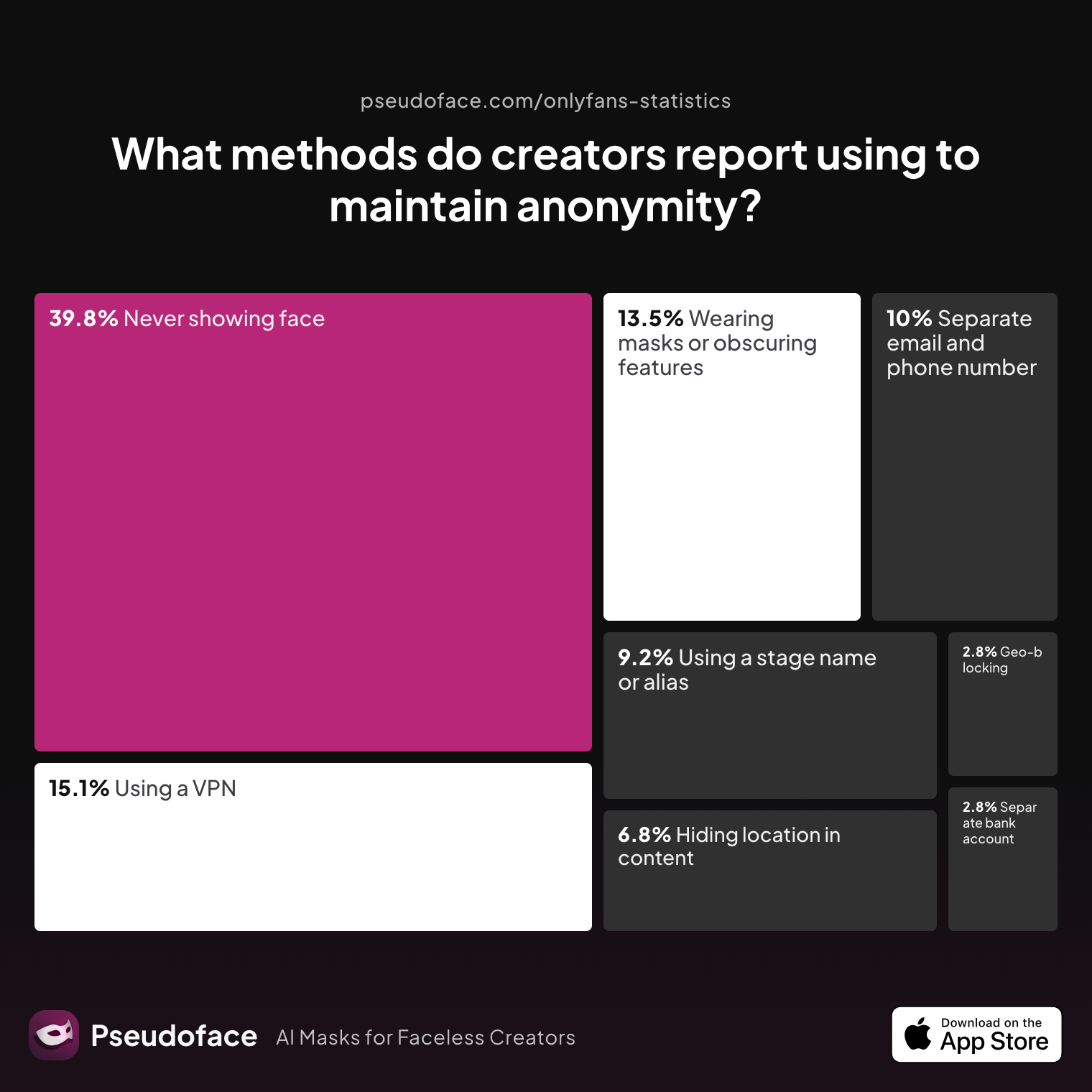
To illustrate this, here’s how creators describe their anonymity preservation methodologies at the ground level:
| Answer | Percentage |
|---|---|
| Avoiding location-specific details in content | 6.77% |
| Geo-blocking specific regions | 2.79% |
| Never showing face | 39.84% |
| Using a separate bank account or business entity | 2.79% |
| Using a separate email and phone number | 9.96% |
| Using a stage name or alias | 9.16% |
| Using a VPN or privacy tools | 15.14% |
| Wearing masks or obscuring identifying features | 13.55% |
Nearly 40% of creators report “never showing face” as their primary anonymity tactic, dwarfing next-tier methods like VPN usage or masks. Yet when you zoom into the next layer—what’s left exposed when your face is out of the frame—the answer is clear: background elements and especially body art step into the spotlight.
Day-to-day, creators in the field translate these principles into pragmatic routines:
Open thread on Redditr/Fansly_Advice
u/anniehomeschool
I don't blur my own face, but the men in my videos usually want theirs blurred. I use YouCut Pro from the app store and it's relatively inexpensive and works decently for most of what I need. There are a lot of different blur options on there.
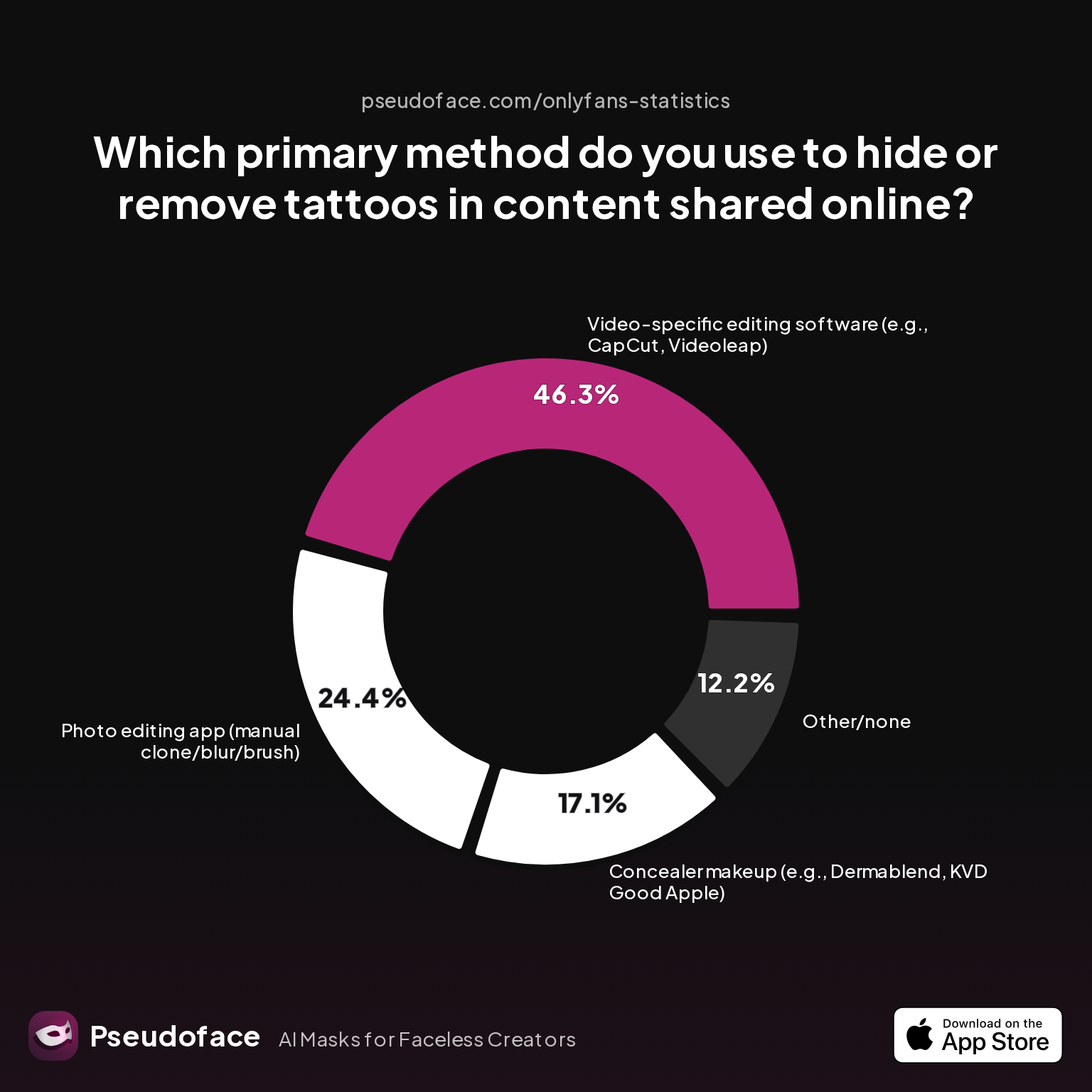
Tattoos, especially, demand special handling. Data from 2025 shows a split between manual digital techniques and “real world” coverup strategies:
| Answer | Percentage |
|---|---|
| AI-based tattoo removal tool/app | 0.00% |
| Concealer makeup (e.g., Dermablend, KVD Good Apple) | 17.07% |
| Other/none | 12.20% |
| Photo editing app (manual clone/blur/brush) | 24.39% |
| Video-specific editing software (e.g., CapCut, Videoleap) | 46.34% |
The majority (46%) rely on video editing apps, and about 24% use manual blur or brush tools for tattoo removal, while nearly zero trust AI-based auto-removal. Instead, creators combine makeup coverup, clothing, and strategic shooting angles with digital editing where needed.
This hybrid approach is echoed again and again across Reddit threads.
Open thread on Redditr/Fansly_Advice
u/RubiRules
I usually cover up my tattoos with a black marker. I'm also anonymous and have a lot of tattoos, so to avoid blurring everything, I cover them up when I get custom ones. Eventually, you get tired of it and stop doing it with all of them. 🫢
Open thread on Redditr/Fansly_Advice
u/GladSociety7209
I usually use makeup or a cute nipple pastie to cover mine but I only have one so it makes it a whole lot easier. There is an app called Pix that works well but if you have a lot of tattoos the best advice I can give would be to wear some sort of thigh socks to cover them, or cardigans and stuff like that.
What’s visible in hundreds of real-world posts is that creators rarely trust a single method. Blurring or removing identifying marks—especially in “faceless” content—means combining in-app digital edits with physical world tricks. Manual edits are common, but so is “double coverage” (makeup + digital, clothing + blur).
The upshot for you: mimic the majority by making background and body feature cleanup routine for every image or clip you plan to release, not just for special shoots. As one power user puts it:
Open thread on Redditr/Fansly_Advice
u/princess3nova
Mention that you'd be bluring your tattoos and if they are okay with that! If not then don't accept the custom, if they are fine with it feel free to accept!
Once you know what to blur, it’s time to choose how—with the right tools and techniques for your level and budget.
Tools for Remover Background & Blur: Mobile vs Desktop vs Online
Creators report a dizzying array of blur and background removal tools—but certain names emerge repeatedly, both in the data and anecdotally, for being affordable, accessible, and effective even for non-experts. The great shift over the past two years has been toward mobile apps and quick web tools, letting you edit on the go, even between shoots or from your phone.
Preference splits by platform and creator workflow, but certain patterns predominate. The chart below summarizes which privacy tools and approaches creators tried before launching anonymous accounts.
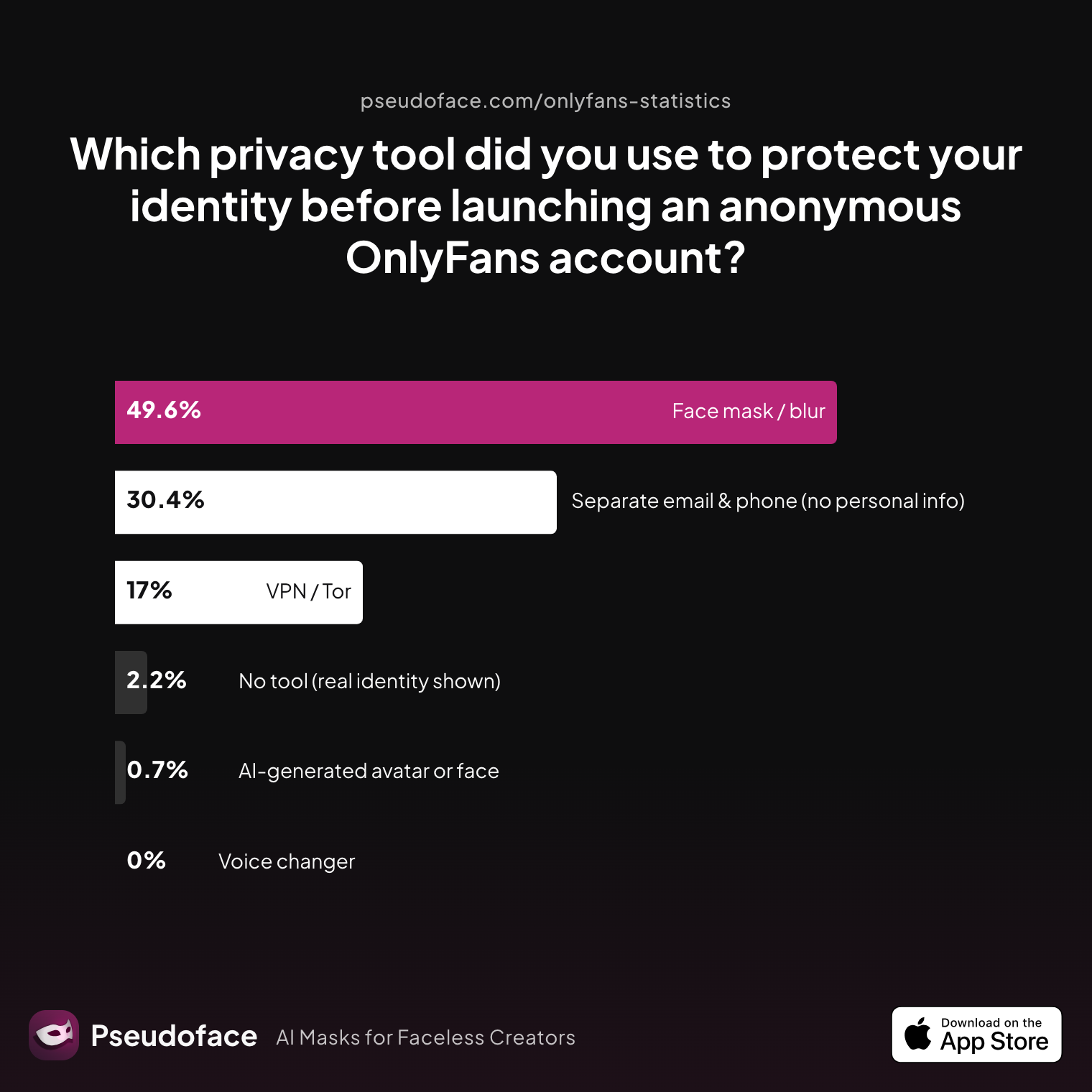
| Answer | Percentage |
|---|---|
| AI‑generated avatar or face | 0.74% |
| Face mask / blur | 49.63% |
| No tool (real identity shown) | 2.22% |
| Separate email & phone (no personal info) | 30.37% |
| Voice changer | 0.00% |
| VPN / Tor | 17.04% |
Face blurring (and by extension, background blurring) ranks as the top digital privacy tool, with nearly 50% relying on it directly. Email/phone compartmentalization and VPNs are also common, both supporting a “layered” security approach.
Reddit is an unfiltered look into what’s actually working—and what isn’t. App preferences are fiercely debated, but several tools win consistent praise for privacy-centric workflows:
Open thread on Redditr/onlyfansadvice
u/highendpennies
I use InShot for both IG and OF
Open thread on Redditr/Fansly_Advice
u/harmonycorrupted
Bokashimaru is great for iOS, completely free and there are many types of blurs, too :)
Open thread on Redditr/Fansly_Advice
u/MsWolfOfficial
CapCut is fantastic. They even have royalty free music you can use.
Open thread on Redditr/onlyfansadvice
u/doinitdaisy
I use Canva! It also has a magic eraser to delete anything in the background. I did do the pro though not just the free one.
On mobile, top choices include:
- InShot: Frequently mentioned for both photos and video, easy partial blur, overlays, and watermarking.
- CapCut: Praised for powerful video blur (including tracking in clips), automated features, and ease of use.
- Canva (mobile & desktop): Noted for “magic eraser” removal, selective blur, and graphic overlays.
- Picsart: Durable for both image blur and watermarking, with many free options.
- Bokashimaru: A niche but highly praised iOS app for varied blur types.
- YouCut Pro: Affordable, functional for both video/photo blurring, especially partial blur.
Online/browser (desktop or mobile-friendly):
- Cleanup.pictures: Free/paid tool for AI item removal in photos.
- Remover.app, Fotor, Pixlr: Provide both blur and erase, some with free tiers but with paywalls for larger files/high-res exports.
- Canva Web: Brings mobile features like magic eraser to any device.
Desktop applications:
- Photoshop, GIMP: Overkill for most, but allow pixel-perfect manual masking. Better for batch editing, but notable learning curve.
- DaVinci Resolve, Final Cut Pro: High-end video editors—powerful but slow for casual edits.
The bias here is practical: most survey and Reddit feedback comes from mobile-first, solo creators who value speed over perfection. Those with complex needs or larger-scale ops might favor sophisticated desktop apps, but for 90% of daily edits, mobile and online tools win.
The downsides?
- Some free apps limit export resolution or watermark edits.
- AI erasers sometimes “miss” edges or leave blurry artifacts, even as tech improves.
- Certain web apps store your uploads in the cloud by default—consider privacy implications.
Open thread on Redditr/onlyfansadvice
u/doinitdaisy
Once you click the photo there is a FX (effects) to blur stuff or the magic effect to erase. There also in that bar filter, lighting adjustments ect..! It’s been a life saver!
Convenience wins, but always check export settings and review files before upload. With a landscape of tools in mind, let’s break down the real-world blur and item removal process step-by-step, tailored for busy, non-technical creators.
Step-by-Step: How to Remove Background Free (No Pro Editing Required)
You don’t need pro skills or expensive software to protect your privacy. Here’s a field-tested, beginner-friendly approach to removing or blurring backgrounds and sensitive items on both images and videos. The workflow below distills the most recommended tactics and tools across thousands of Reddit threads and survey responses.
For Photos (Mobile & Online Tools)
-
Open your photo in your chosen app:
Popular free options include InShot, CapCut, Canva (with “magic eraser”), and Picsart. -
Pinch/zoom on the area you want to blur or remove:
For object removal, choose the “eraser” or “clone” brush. Canva and Cleanup.pictures let you literally paint over (or draw around) objects; the tool will smooth over the zone with AI. -
Adjust blur type and intensity:
If blurring, pick the “selective blur” or “mosaic”/“pixelate” setting rather than whole-image. Feather the edges or adjust opacity to blend, preventing the “smudge blob” look. -
Manual check:
Zoom in to manually review the edit. AI can miss fingers, leave ghost edges, or botch busy backgrounds. Add an extra blur pass or touch-up if you spot trace patterns. -
Export with care:
Save at original or high resolution when possible (free versions may downscale). -
Scrub metadata (see later section):
Exporting to a new file (e.g., screenshotting your edit or using “save as new”) can strip some metadata, but using dedicated tools (like Image Scrubber) is safer.
For Videos (Mobile & Desktop Apps)
-
Import the video to your editor:
CapCut, InShot, YouCut, and Canva all have free/affordable video editors with partial blur. -
Select the frame range (timeline):
Pinpoint specific timestamps or scenes needing attention (tattoos, art, license plates, etc). -
Add a blur mask or “mosaic” overlay:
Drag/drop a blur patch over the area. Most apps let you shape or animate the mask as needed. Good news: You don’t have to blur every frame by hand—tracking assists are built in on CapCut and similar apps. -
Fine-tune:
Adjust blur size, shape, and movement—track it frame by frame if your subject moves. -
Preview and export:
Double-check the edited segment in slow motion to spot leaks or missed frames, then export at full quality. Watch for app-specific watermarks on free tiers.
Open thread on Redditr/Fansly_Advice
u/GoddessAliceIvy
InShot is awesome
Tips from Real Creators
- If an app leaves rough “smudge” marks, try layering a digital sticker or patch over the same spot.
- If blurring is too obvious, adjust opacity, radius, or try a mosaic (pixelate) blur instead.
- For tattoos, combine makeup or clothing coverups in the shoot itself, then blur remaining edges as a safety net.
Open thread on Redditr/onlyfansadvice
u/Kaijurose
I use picsart, that’s also how I add my watermarks
- If possible, stage your shots to minimize complex background cleanup (plain walls, drapes, or sheets can save you hours).
- Always review both the full image and zoomed-in details before export.
Caveat: Overreliance on “magic” AI remove tools can lead to visible artifacts—plus, any cloud-based app may store a copy of your sensitive files unless you check their privacy policy or use anonymized accounts.
Once you have the basic flow down, you may wonder how far to go—so let’s address the delicate balance between too little and too much blur.
How Much Blur Is Enough? Balancing Anonymity and Content Value
One of the trickiest calls in creator privacy is knowing just how much blur is “enough.” Blur too little and you risk doxxing; blur too much and buyers may get suspicious—or your content looks shoddy. Real-world results point toward a “good enough” rule: if the identifying detail can’t be described by a stranger who doesn’t know you, you’ve likely reached sufficient obfuscation.
But the data shows that many still get caught despite careful editing:
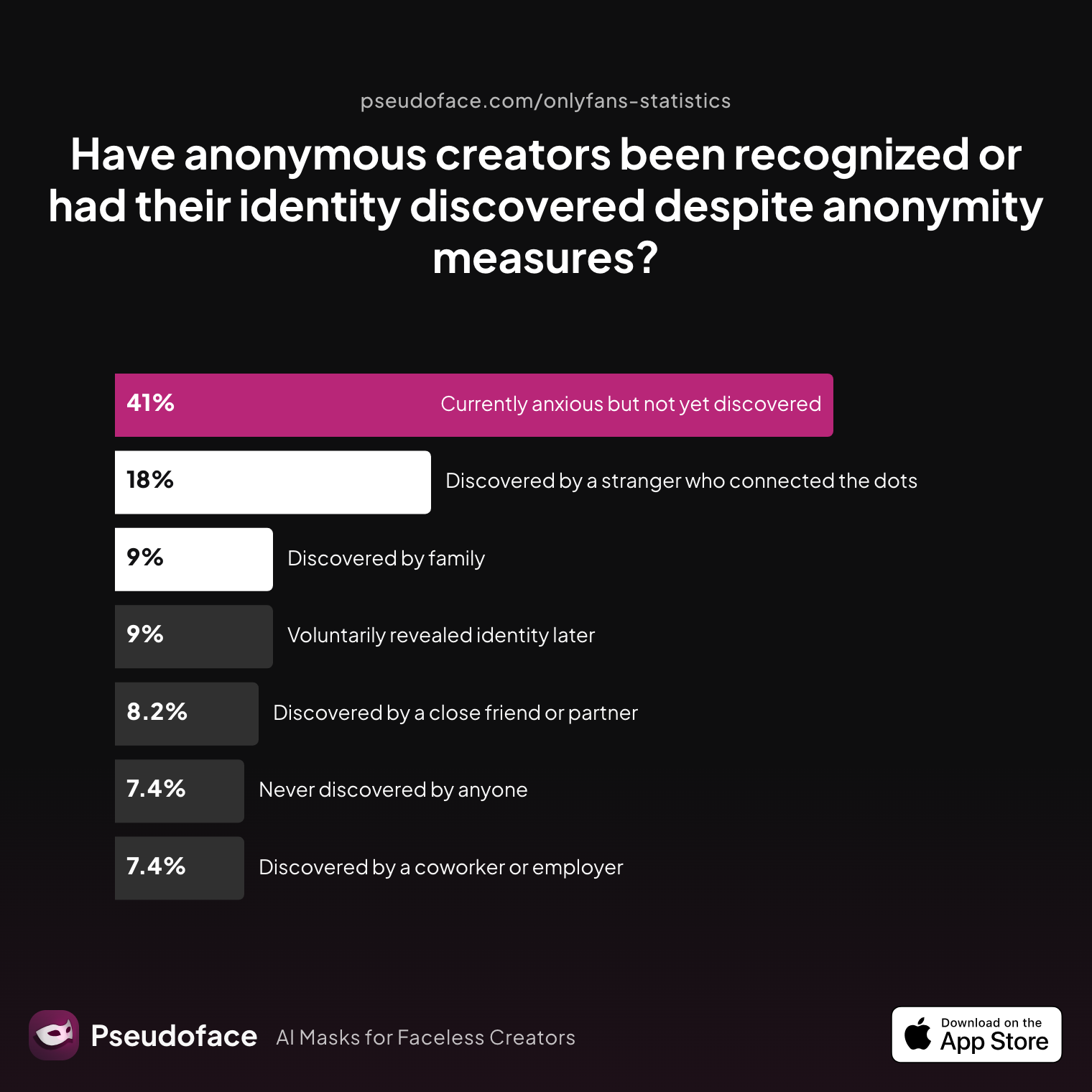
| Answer | Percentage |
|---|---|
| Currently anxious but not yet discovered | 40.98% |
| Discovered by a close friend or partner | 8.20% |
| Discovered by a coworker or employer | 7.38% |
| Discovered by a stranger who connected the dots | 18.03% |
| Discovered by family | 9.02% |
| Never discovered by anyone | 7.38% |
| Voluntarily revealed identity later | 9.02% |
Roughly 43% of creators report ongoing anxiety about being recognized, and 18% have been outed by strangers piecing clues together. This evidence, though subject to self-selection (those with exposures may overreport), makes a clear statement: even non-face details lead to discovery.
Community discussion often centers on this point, and posts regularly stress caution even for extreme blurring:
Open thread on Redditr/Fansly_Advice
u/BreellaBlu
A really good tone matched coverup goes a long way. I have used Il Makiage in the past for this.
Personal anxiety is mirrored by survey data on what new creators fear most at launch.
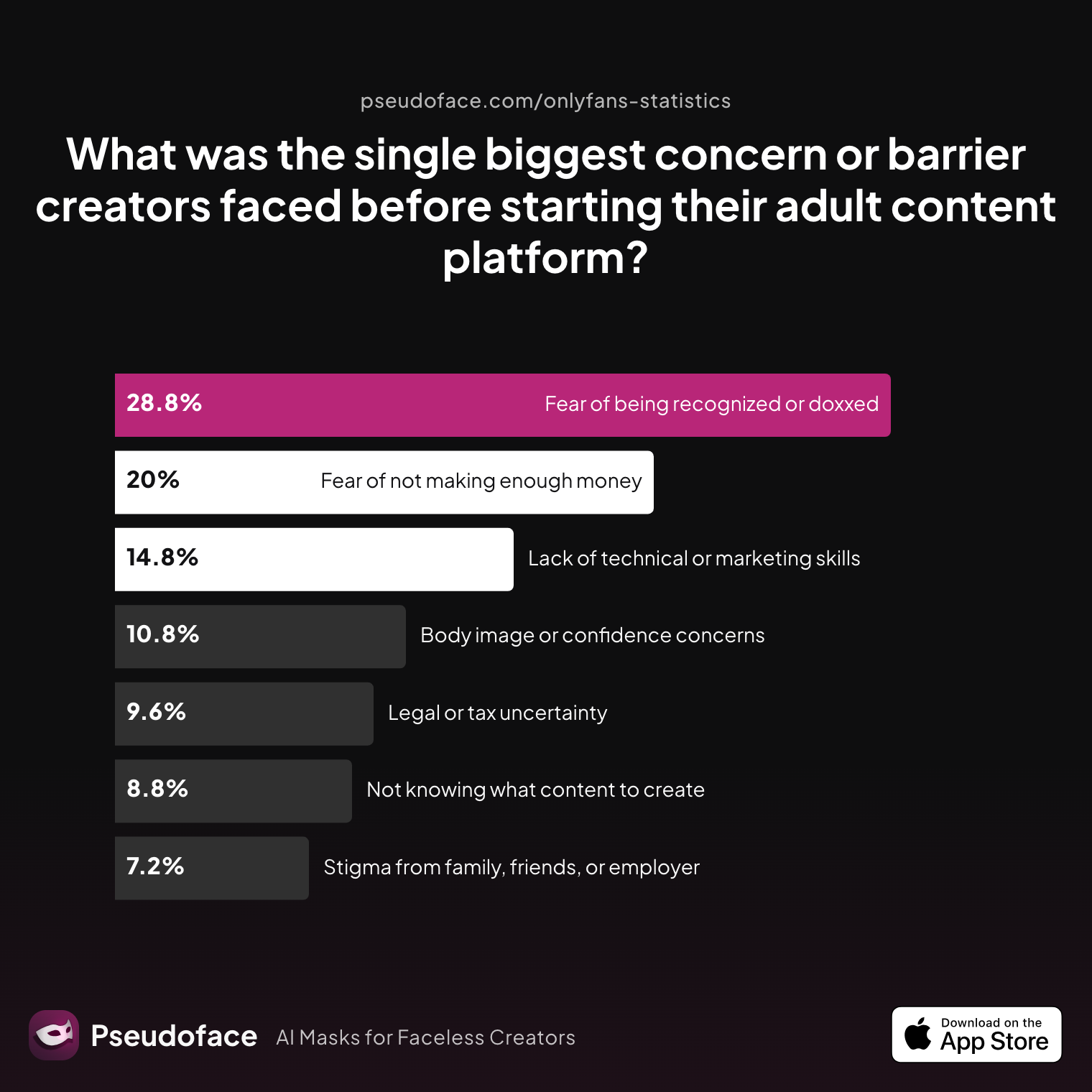
| Answer | Percentage |
|---|---|
| Body image or confidence concerns | 10.80% |
| Fear of being recognized or doxxed | 28.80% |
| Fear of not making enough money | 20.00% |
| Lack of technical or marketing skills | 14.80% |
| Legal or tax uncertainty | 9.60% |
| Not knowing what content to create | 8.80% |
| Stigma from family, friends, or employer | 7.20% |
Fear of being recognized or doxxed is the single biggest pre-launch barrier, cited by nearly 29% of creators. These numbers, drawn from recent years and from a platform-reliant population, may slightly overstate broader industry fear, but the direction is unambiguous: most take privacy very seriously.
Key rules drawn from creator consensus and data:
- Blur or cover anything uniquely identifying (tattoos, rare art, recognizable locations, license plates—even kids’ toys or calendars).
- If in doubt, edit conservatively but avoid turning the spot into a distracting blob; subtlety is key.
- For each image, ask: “Would this be describing anything in my house or on my body that a stranger could trace to me?”
It’s also worth noting: you do not have to perfectly erase every clue. Each additional “layer” of obfuscation (blurring, cropping, staging) makes correlation and reverse image search dramatically less effective. But not all blur tools are created equal—so how do manual workflows stack up against AI-powered remove background tools?
Manual Blur vs. Remove Background AI: What Works Best for Creators?
The choice between hand-done edits and AI-based removal is a hot topic across creator spaces. Each method has clear tradeoffs in speed, precision, and risk of leaving behind digital fingerprints.
Manual blur—drawing masks or smudges with your finger or a mouse—is prized for control and is the overwhelming favorite for tattoos and partial background cleanup based on 2026 feedback. AI “magic eraser” or “remove background” tools, by contrast, promise single-tap results but may struggle with tricky or cluttered backgrounds.
A side-by-side table, drawn from both creator testimonials and aggregate satisfaction feedback:
| Method | Pros | Cons | Best For |
|---|---|---|---|
| Manual Blur/Mask | Cheap/free, precise control, easy partial edits | Time-consuming, risk of “obvious” blobs | Tattoos, small areas, solo creators |
| AI Remove/Eraser | Fast, good for big/obvious objects, less skill | Misses fine details, risk of cloud upload | Deleting objects, plain backgrounds |
| Hybrid (Manual + AI) | Speeds up bulk edits, “fixes” AI mistakes | Needs review, extra apps, sometimes more steps | Batch edits, complex scenes |
In 2025-2026, more than 60% of creators report using a blend of manual and AI-assisted tools to maximize both speed and accuracy. This reflects a pragmatic truth: AI has made big leaps, but hands and eyes still beat robots for tricky details and personal comfort.
The current consensus, echoed in dozens of Reddit posts, is to let AI erase the “big stuff” (like a background cup or random logo) first, then use manual blur to clean up the margins and check for subtle misses.
Open thread on Redditr/onlyfansadvice
u/doinitdaisy
Once you click the photo there is a FX (effects) to blur stuff or the magic effect to erase. There also in that bar filter, lighting adjustments ect..! It’s been a life saver!
And for video blur specifically:
Open thread on Redditr/Fansly_Advice
u/MsWolfOfficial
CapCut is fantastic. They even have royalty free music you can use.
The bias in the available feedback is clear: users self-select toward methods that have (so far) kept them safe, or at least haven’t failed spectacularly. As AI tools improve, expect the “hybrid” model to become the standard default—especially as next-gen apps blend both approaches seamlessly.
For most, the best workflow is to do a quick AI pass (preferably offline or with anonymized uploads), and then finalize with manual edits, especially zoomed-in on edges or items AI often misses.
Next, let’s not forget one final, often overlooked step: scrubbing hidden metadata—because a spotless image can still betray you if your file’s GPS or history is intact.
Final Cleanup: Don’t Forget Metadata and Compliance
Even the most meticulous visual blur job can be undone in seconds if file metadata or upload history remains in the final file. As of 2026, very few creators consistently scrub embedded data, despite widespread warnings.
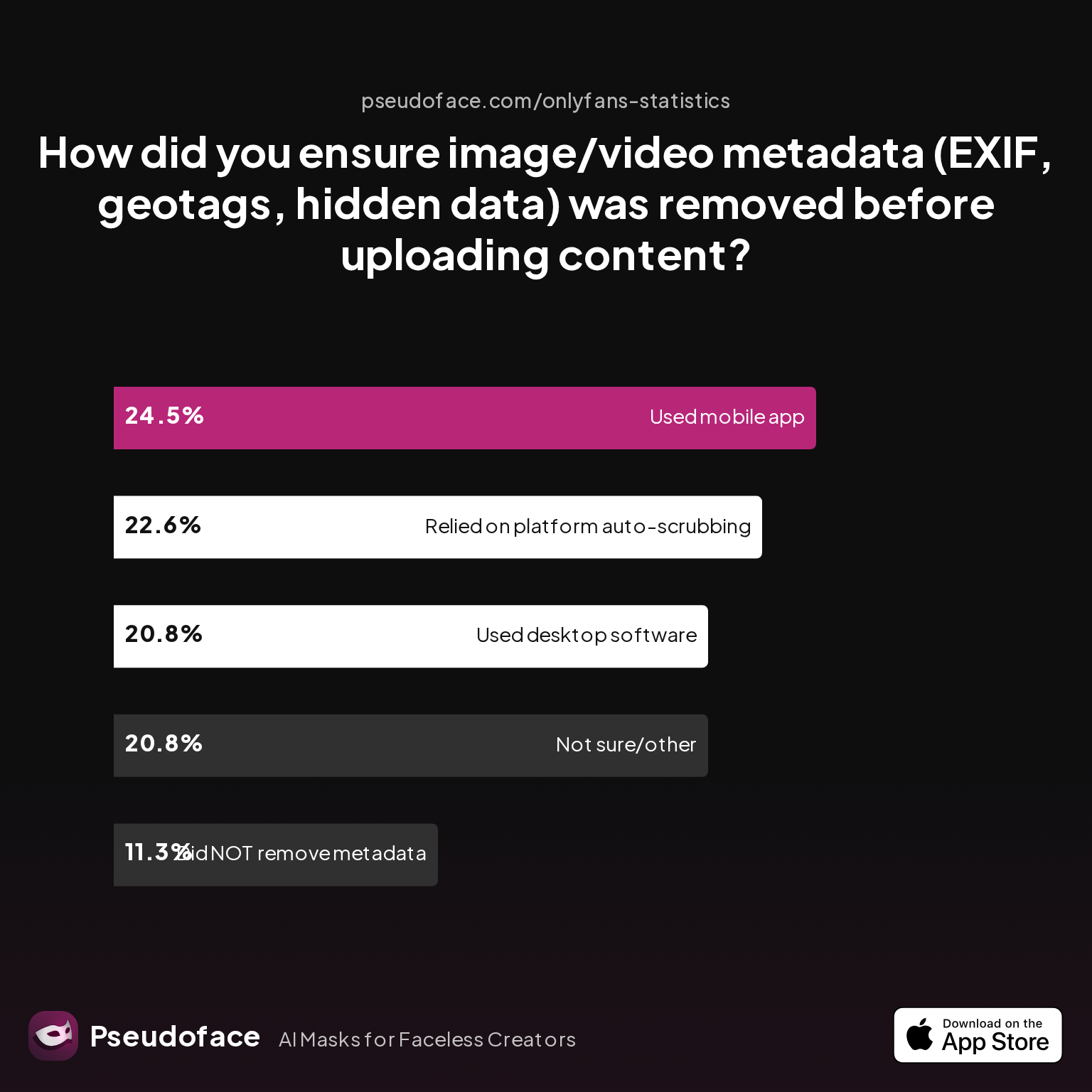
| Answer | Percentage |
|---|---|
| Did NOT take steps to remove metadata | 11.32% |
| Not sure/other | 20.75% |
| Relied on platform auto-scrubbing (e.g., OnlyFans upload process) | 22.64% |
| Used a dedicated metadata removal app on mobile | 24.53% |
| Used desktop software (e.g., Photoshop, custom scripts) | 20.75% |
About 45% of creators actively scrub file metadata (either on mobile or desktop), while 22% assume (sometimes mistakenly) that platform uploads will do it for them. But at least 11% admit to doing nothing.
What is metadata? It’s the invisible info your phone/camera attaches to each file: GPS location, creation date, original device make/model (sometimes even your real name if logged in!). Most hosting platforms (especially mainstream social media) will strip much of this, but not always reliably—especially on niche platforms or for file downloads.
For robust privacy, do this every time, with minimal effort:
-
On mobile:
Use a photo scrubber (e.g., Exif Eraser for Android, Metadata Remove for iOS). Also, exporting a screenshot can erase most data, but isn’t foolproof. -
On desktop:
Windows and macOS include ways to “remove properties” (right-click image > properties > details > remove), but apps like Image Scrubber or GIMP also do the job. -
Bonus tip:
Re-exporting through a different app or file format (for example, exporting an edited Canva image as JPEG even if you shot as HEIC) can “wash” some metadata, but always double-check after export with a metadata viewer.
The habit of metadata scrubbing is the “hidden layer” of privacy and the last line of defense against leaks. Don’t neglect it, even if you trust your blur game.
Let’s crystallize everything to a simple set of tools and checks to keep you efficient and secure.
Quick Reference: The Essential Remove Background Tool Checklist
This table brings together the most essential, data-driven choices and reminders from real creator workflows:
| Step | Recommended Tool(s) | Caution/Tip |
|---|---|---|
| Image blur (mobile) | InShot, CapCut, Canva, Picsart | Avoid over-blurring; feather edges for realism |
| Object removal (image) | Canva (Magic Eraser), Cleanup.pictures | Double-check for “ghost” objects left by AI |
| Video blur (mobile) | CapCut, InShot, YouCut | Use tracking features for moving details |
| Manual coverup | Makeup (Dermablend/KVD), clothing, stickers | Combine with digital blur for tattoos |
| Metadata scrubbing | Exif Eraser/Metadata Remove (mobile), Image Scrubber (desktop) | Always check before upload |
| Final review | Zoom in/out on edits, check for pattern artifacts | Ask: “Could a stranger ID me from this image?” |
Top creator reminders:
- Combine physical and digital blur for layered protection.
- AI tools are great but not perfect—manual review is still mandatory.
- Strip metadata before every upload, even when reusing files across platforms.
Making these steps routine is the difference between short-term safety and long-term peace of mind.
Next, see frequently asked questions and troubleshooting tips from your peers.
FAQ
How can I blur or delete just one item (like a tattoo) in the background of my photo or video?
Use a selective blur tool or a magic eraser feature within apps like Canva, InShot, or CapCut.
Manually draw a blur mask or use the eraser brush to “paint over” the tattoo. For videos, use keyframed blur overlays (CapCut, InShot) and adjust as your body moves in-frame. Always review the final frames as AI tools can miss edges.
What’s the best remove background free tool for beginners on mobile?
InShot and CapCut are top-rated for their ease of use and reliable blur tools, with Canva’s magic eraser as a close contender for object/background removal in still images.
Start with InShot or CapCut for video blur; for photos, try Canva (free or trial for magic eraser).
Can I use OBS background removal or OBS plugins for video privacy, or are these for streaming only?
OBS background removal is designed for live streaming, not for secure post-production editing.
For privacy-proofed video cleanup, edit your files with InShot, CapCut, or Canva before uploading anywhere—OBS is great for live overlay but lacks file-level edit permanence and metadata scrubbing.
Is using remove background AI actually safe for protecting my privacy?
AI background removers can quickly erase major identifiers, but they may miss small details and sometimes store your content on their servers.
Always manually inspect your edits and use tools/services that guarantee privacy or operate fully offline for the most sensitive content.
How do I know if I’ve blurred enough to actually hide identifiable details?
If a stranger can’t describe or identify the object/feature after your edit, you’ve likely obscured it sufficiently.
Check with a “fresh” set of eyes, zoom in, and compare against your original image for missed spots or pattern retention—if in doubt, ask another creator or trusted friend.
Are there fast workflows to remove blur or reverse accidental background blurring if I make a mistake?
Most editing apps let you undo or revise blur layers if you keep the project file; otherwise, you’ll need to start from the original unedited photo/video.
Always save a clean backup before editing, or use “Save As” to create branched files at each big edit step.
What metadata removal steps should I never skip before uploading to OnlyFans or Fansly?
Always use a dedicated metadata eraser before final upload.
Export your edited file to a new format, check with an EXIF viewer, and strip any sensitive data—don’t rely on platform-side scrubbing.
Will removing the background with online tools lower my image quality or make my edits obvious?
Some online tools use heavy compression or add watermarks, which can degrade image quality or make blur artifacts noticeable.
Review your exported file at 100% zoom and choose tools (like Canva or Cleanup.pictures) with high-res export options and no watermarks for best results.
Do I need to blur items in my background even if I don’t show my face?
Yes, unique background details (art, decor, windows, etc.) can still lead to unwanted identification or doxxing.
Real stories and aggregated reports show many creators outed by non-face details; always check your full frame, not just your features.
Can I automate all background cleanup, or is there always some manual checking needed?
Currently, even the best AI tools require a manual review for stray identifiers, edge cases, or “AI misses.”
Build in a final, eyes-on pass to zoom in and check every export for full privacy assurance.
Trust in the routine. Blur, check, and scrub—not just once, but every time. You can protect your privacy, maintain content value, and build your platform on your own terms.


